Tools
The Tools tab bundles what UI5 developers need every day: clear caches selectively, load debug sources for your own code only, set theme, RTL or language as URL parameters, jump from a control to your editor and check whether the browser runs the deployed version. All of it is part of the free Community edition.
- Edition
- Community
- Tab
- “Tools”
- Shortcut
- Alt+Shift+K (command palette)
- Surfaces
- DevTools panel and side panel
- On PROD
- reloading with parameters allowed, resets and UI5 version locked
The tab at a glance
Open the FrontTailor panel in DevTools (F12) or the side panel and choose the Tools tab. It consists of cards you can expand and collapse; their state is remembered. In the DevTools panel the cards sit in two columns from about 1100 pixels width, in the side panel in one.
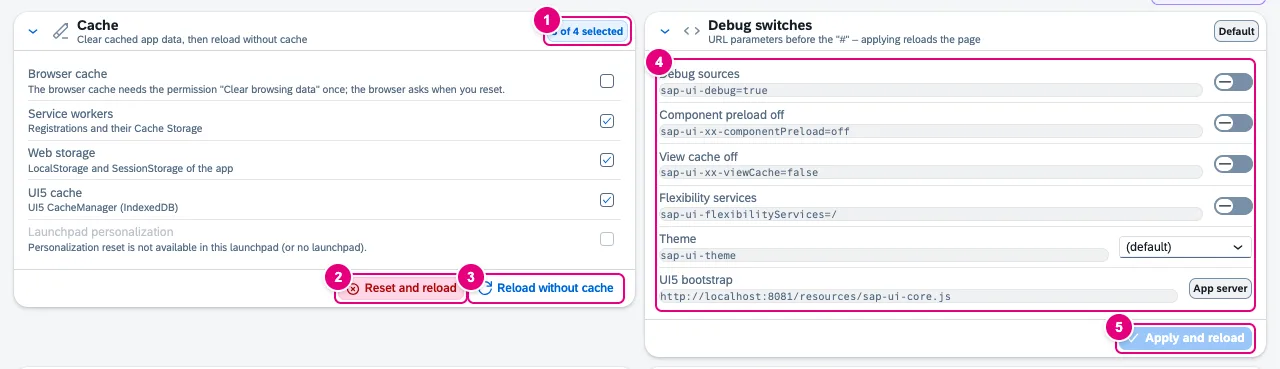
- How many cache targets are selected. Targets the page does not have are not counted.
- Reset and reload deletes the selected targets – with double confirmation (see cache).
- Reload without cache reloads the page bypassing the HTTP cache and deletes nothing.
- The debug switches: URL parameters before the
#, below them the address of the UI5 bootstrap. - Apply and reload becomes active as soon as you change a switch.
| Card | What for |
|---|---|
| Cache | clear cached app data and reload without cache |
| Debug switches | debug sources, preload off, view cache off, theme as URL parameters |
| Debug only your own code | debug sources for the app’s namespace only |
| URL presets and profiles | ready-made parameter sets and your own profiles per host |
| Language | switch the app language and RTL to test the i18n texts |
| Open in editor | editor and path mapping for the jump to the source file |
| Deployment | running version vs. server, cache-buster tokens |
| Flex & adaptations | layers, views and key-user versions, reset your own personalization |
| UI5 version (CDN) | load the app in this tab with another UI5 version from the SAP CDN |
| More tools | Support Assistant, Technical information and the command palette |
| Palette favourites | pinned and recently used actions of the command palette |
| UI5 log | log level and live entries from sap/base/Log |
Every switch that reloads puts its parameters before the hash of the address. The launchpad hash (#Object-action?…&/route) and other parameters stay exactly as they were.
Clear the cache selectively
- In the Cache card, choose the targets: Browser cache, Service workers, Web storage, UI5 cache and, in the launchpad, Launchpad personalization.
- Click Reset and reload.
- The Reset caches? dialog lists every target. Tick I understand that this data will be deleted. – only then does Reset become active.
- FrontTailor deletes the targets, reloads the page without cache and shows done, skipped, not available or failed per target.
| Target | What is deleted |
|---|---|
| Browser cache | HTTP cache and Cache Storage of the tab’s domain only, never globally. Needs the permission “Clear browsing data” once; the browser asks on the first reset. |
| Service workers | registrations and their Cache Storage |
| Web storage | LocalStorage and SessionStorage of the app |
| UI5 cache | the UI5 CacheManager (IndexedDB) |
| Launchpad personalization | all launchpad personalization of your user; only if the launchpad supports it, with its own confirmation |
FrontTailor never touches cookies or passwords.
Debug switches
| Switch | Parameter |
|---|---|
| Debug sources | sap-ui-debug=true – all modules unminified, noticeably slower |
| Component preload off | sap-ui-xx-componentPreload=off |
| View cache off | sap-ui-xx-viewCache=false |
| Flexibility services | sap-ui-flexibilityServices=/ – UI5 does not read this value from the URL; the switch currently has no effect. |
| Theme | sap-ui-theme, chosen from the list |
A tag in the card header shows how many switches are active in the page and how many changes are pending. Apply and reload sets the parameters and reloads the tab.
Debug only your own code
sap-ui-debug=true loads every module as a debug source – in the launchpad that often takes minutes. Usually your own code is enough. The Debug only your own code card sets sap-ui-debug to the app’s namespace.
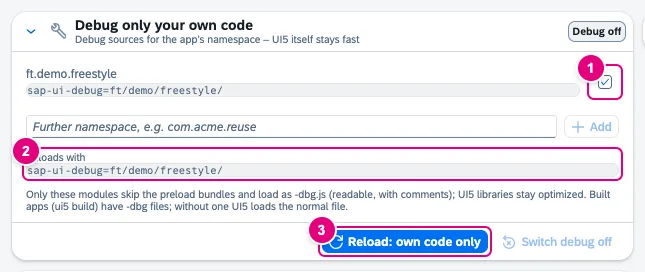
- Detected namespaces of the loaded apps, as check boxes. Add more below – for example a team library – and click Add.
- Reloads with: the parameter used for the reload.
- Reload: own code only. Switch debug off removes the parameter again.
- Open the Debug only your own code card and check the detected namespaces.
- Click Reload: own code only.
- After the reload the card header says Own code. Your modules come as
-dbg.jswith comments, the UI5 libraries stay bundled.
Built apps (ui5 build) have -dbg files; without one UI5 loads the normal file. In the launchpad the parameter goes into the outer URL; for an app in an iframe FrontTailor adds sap-iframe-params=sap-ui-debug so the launchpad passes it on.
URL presets and profiles
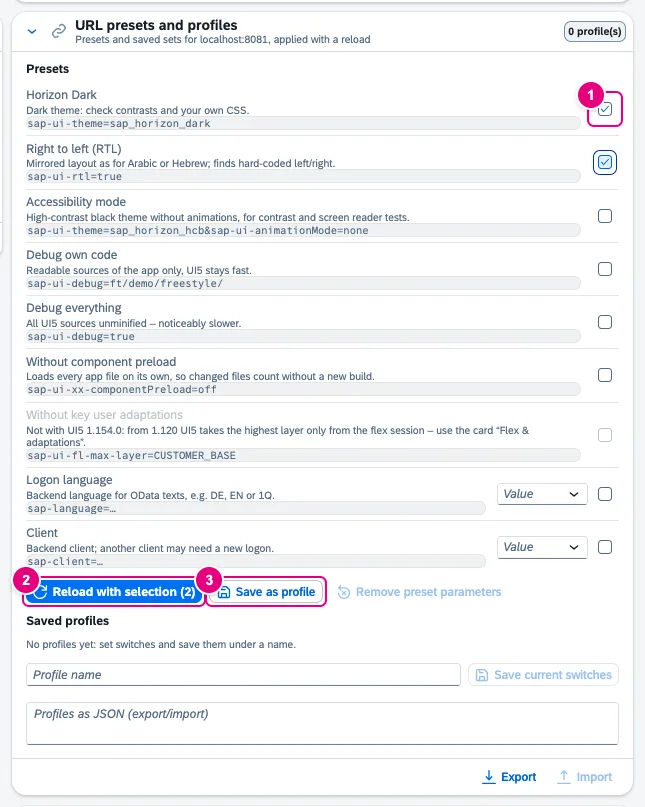
- Tick presets. Several can be combined; presets with the same parameter exclude each other.
- Reload with selection – the number counts the selected presets.
- Save as profile stores the selection as a profile for this host.
| Preset | Parameter |
|---|---|
| Horizon Dark | sap-ui-theme=sap_horizon_dark |
| Right to left (RTL) | sap-ui-rtl=true |
| Accessibility mode | sap-ui-theme=sap_horizon_hcb and sap-ui-animationMode=none |
| Debug own code | sap-ui-debug= with the app’s namespaces |
| Debug everything | sap-ui-debug=true |
| Without component preload | sap-ui-xx-componentPreload=off |
| Without key user adaptations | sap-ui-fl-max-layer=CUSTOMER_BASE, up to UI5 1.119 only; display only, nothing is deleted |
| Logon language | sap-language=, for example DE, EN or 1Q |
| Client | sap-client=, three digits |
Remove preset parameters takes the parameters out of the address again. Saved profiles holds up to 20 profiles per host; Apply reloads with a profile, Remove deletes it. Export and Import exchange profiles as JSON. Profiles only accept sap-* parameters and reject names that look like credentials (token, password, session …).
Language and RTL
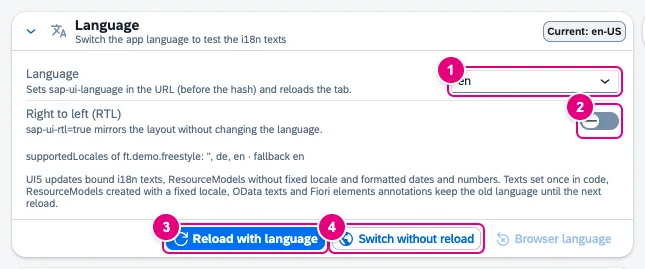
supportedLocales and fallback language.- Language: sets
sap-ui-languagein the URL. The list also holds Test languages (SAP pseudo languages). - Right to left (RTL):
sap-ui-rtl=truemirrors the layout without changing the language. - Reload with language.
- Switch without reload: UI5 updates bound i18n texts and formatted dates and numbers right away. OData texts, Fiori elements annotations and texts set once in code keep the old language until the next reload.
Browser language removes sap-ui-language and sap-ui-rtl again. Find missing translations with Quality: i18n & accessibility.
Open in editor
From a control in the inspector or from the visible view you jump straight to the source file – for XML views to the control’s line. For that you tell FrontTailor once which editor you use and in which local folder an app’s files live.
- Open the Open in editor card and choose your editor under Editor.
- Under Path mapping, click the app’s detected namespace or Add mapping.
- As Local folder, enter the absolute path that holds the files – usually
webapp, for example/Users/me/projects/demo-freestyle/webapporC:\dev\app\webapp. - Click Save. Current app now lists views, controllers,
Component.jsandmanifest.jsonas links. - In the Inspector, select a control and click Open in editor. The browser asks before it starts the editor.
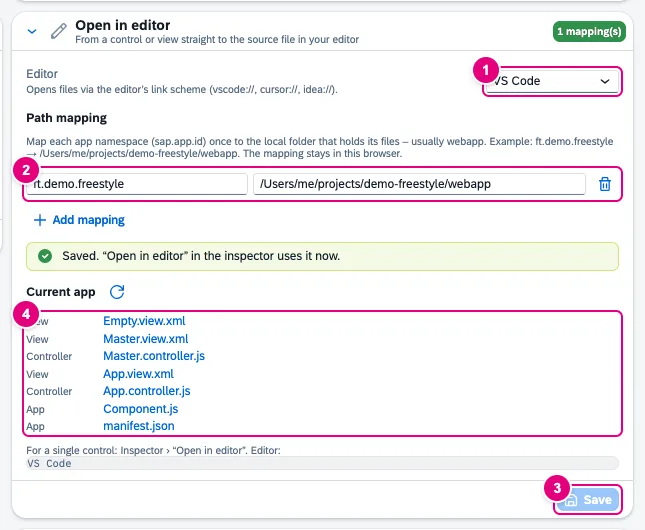
webapp folder.- Editor: opens files via its link scheme.
- Path mapping: Namespace → Local folder, with a bin to remove it.
- Save.
- Current app: all visible own views with their controller, plus
Component.jsandmanifest.json. The icon next to it reads the visible view again.
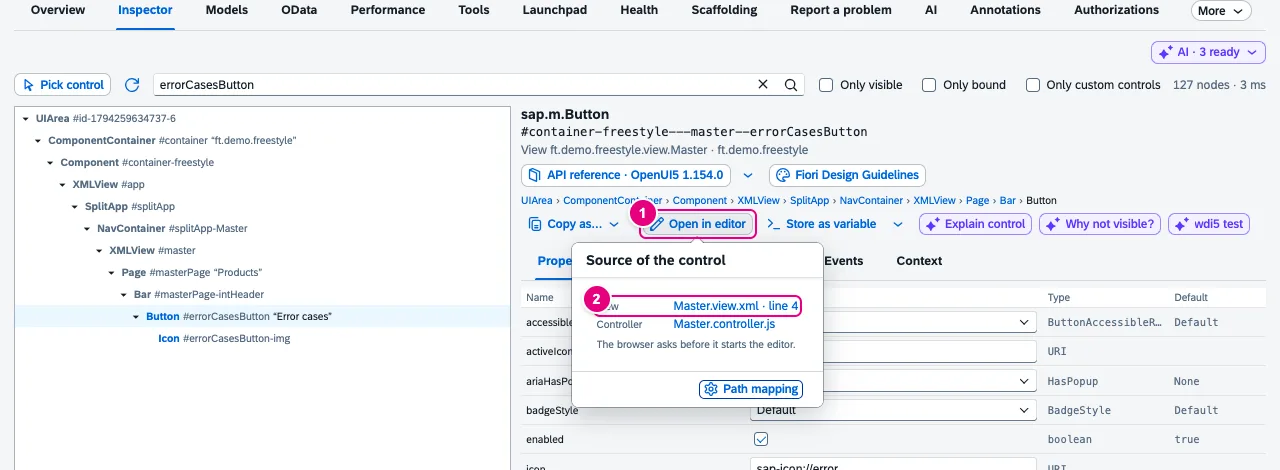
- Open in editor in the control’s details.
- The link to the view, here with the line that holds the control’s ID. Below it the controller; Path mapping leads to the card.
| Editor | Link |
|---|---|
| VS Code | vscode://file/… |
| VS Code Insiders | vscode-insiders://file/… |
| Cursor | cursor://file/… |
| IntelliJ IDEA | idea://open?file=…&line=… |
| WebStorm | webstorm://open?file=…&line=… |
- Up to 30 mappings. If both
ft.demoandft.demo.freestylehave one, the longer namespace wins. - If the ID is not in the view, FrontTailor searches the view’s own fragments (one level deep). If it does not find it, the link opens the view at the top.
- Fiori elements views belong to the framework; there is no own source file for them. The app’s
Component.jsandmanifest.jsonare linked anyway. - The mapping stays in this browser: not in
sync, not in exports or team packages, because local paths differ per device. - FrontTailor reads the view source only from the app’s own server (same-origin); nothing goes to third parties.
Check the deployment
The Deployment card answers the question after every transport: is the browser running the version that is on the server? A click on Check deploy compares the app and UI5 version in the browser with the deployed version, and the cache-buster tokens of the loaded files with the current index.
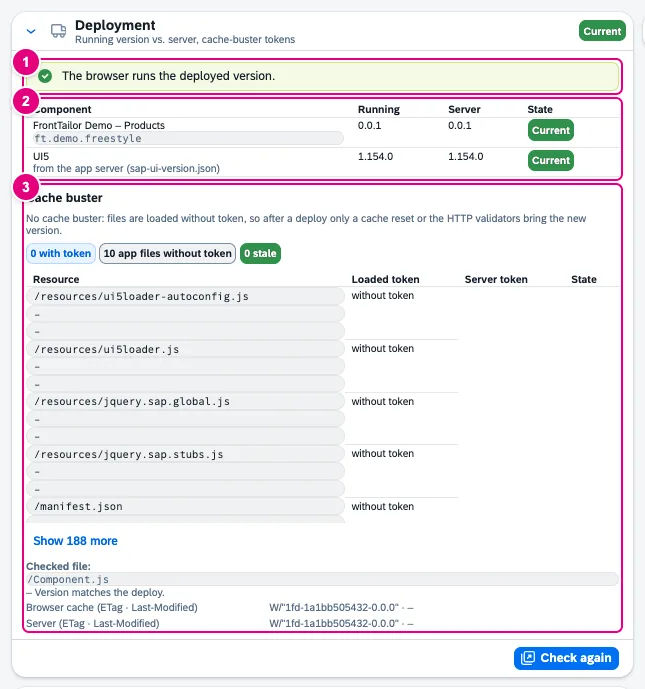
- The verdict.
- Per app component and for UI5: version Running and Server with a state.
- Cache buster: counters for files with a token, app files without a token and stale tokens, below them the list – stale ones first – and the ETag check of
Component.js.
| Verdict | Meaning |
|---|---|
| “The browser runs the deployed version.” | everything is current |
| “Newer version deployed – clear the cache and reload.” | The Clear cache and reload button deletes service workers, the UI5 cache and – if already granted – the browser cache and reloads; double confirmation. |
| “The running version differs from the server …” | another version, but not newer: a rollback or another build |
| “No conclusion possible …” | The server delivers no comparable version information, for example without applicationVersion. |
The check only reads: after the click it requests manifest.json, sap-ui-cachebuster-info.json and sap-ui-version.json from the app’s own server, without cache and without changing the cache. It does not request other origins. Administrators who roll FrontTailor out in a company have their own page: Enterprise deployment.
Flex & adaptations
The card shows whether SAPUI5 flexibility is active for the app, which connectors are configured and how many changes and views sit on which layer (USER, CUSTOMER, VENDOR …), plus every variant management with its current and default view and, as far as UI5 keeps them in memory, the key-user versions. Reading sends no requests.
- Check again reads the state again.
- Reset deletes only your own personalization in the USER layer. Next to it, Reset control resets the changes to one control and Reset views your own views of one variant management. Key-user and public views stay.
- Every reset asks twice and lists the affected objects first.
If the app does not load sap.ui.fl – like the freestyle demo app – the card header says sap.ui.fl not loaded.
UI5 version from the CDN
The UI5 version (CDN) card loads the app with another UI5 version from the official SAP CDN – in this tab only and without a deployment. Your own libraries outside sap/ and the app itself stay on the server.
- Enter the version. Load version list fetches the list from the CDN – only on click, with the address shown next to it.
- Click Switch on and reload. The dialog shows exactly which addresses are redirected where and warns about limits such as the page’s content security policy. If the app already loads UI5 from the CDN, the browser also asks for access to that address.
- After the reload a banner above the tabs shows the active version. Switch override off restores the original version; that always works, on PROD too.
Closing the tab and restarting the browser also end the override. With a strict content security policy on the page, UI5 does not start with the redirected version; the banner shows that.
More tools, palette and UI5 log
| Element | Effect |
|---|---|
| Support Assistant · Start | checks the app against UI5 rules; loads from the app’s UI5 resources |
| Technical information · Open | the app’s UI5 diagnostics window |
| Command palette | shows the shortcut (Alt+Shift+K); Change shortcuts opens chrome://extensions/shortcuts. All about the palette: Command palette |
| Palette favourites | manage pinned and recently used actions |
| UI5 log · Log level, Show live | entries from sap/base/Log live in the panel, filterable by component and text, Deprecations only, Clear. The bridge only runs while the card is open and Show live is on. |
Many of the tab’s actions are also in the palette and the extension popup (cache reset, debug on/off, URL profiles). They go through the same checks.
On PROD
Typical problems
| What you see | Cause and fix |
|---|---|
| “Permission not granted: the browser cache is skipped.” | The permission “Clear browsing data” was declined. The other targets still run; the browser asks again on the next reset. |
| After Reload: own code only the files are still minified | The app is not built with ui5 build and has no -dbg files; UI5 then loads the normal file. |
| “No path mapping for …” in the inspector | The namespace has no mapping. Click Set up mapping – the Open in editor card expands. |
| Clicking an editor link does nothing | The editor is not installed or has not registered its link scheme. The browser asks before starting it; without an editor nothing happens. |
| Without key user adaptations is greyed out | From UI5 1.120 on, UI5 takes the highest layer only from the flex session. Use the Flex & adaptations card. |
| After switching on the UI5 version the app does not start | Usually the content security policy blocks the scripts from the CDN. Click Switch override off. |
See also
- Features at a glance Features · Tools & developer comfort
- Further reading SAPUI5 – The Comprehensive Guide (SAP PRESS)
- Further reading SAP Fiori Elements – Development and Extensibility (SAP PRESS)
- Help from people Hands-on workshops on SAPUI5, Fiori elements, OData and CAP
- Docs Inspector
- Docs Command palette
- Docs Quality: i18n & accessibility
- Sources ADR-0081 · ADR-0392 · ADR-0113 · ADR-0124 · ADR-0245