Team sync
In the Team tab you take over your team’s shared settings: host profiles, URL profiles, OData filters, snippets, PII rules and more. A team package is a JSON file your team hosts itself – for example as a Git raw file, on SharePoint or an internal server. FrontTailor fetches it only on click or on your administrator’s schedule, and changes nothing until you have reviewed the preview and clicked Apply.
- Edition
- from Team
- Tab
- “Team”
- Surfaces
- DevTools panel and side panel
- Sources
- URL subscription, provided packages, file, clipboard
- Server
- none – the file stays with your team
- Applying
- never automatic, always after a preview
Why team sync?
Otherwise everyone in the team sets up the same host profiles, URL profiles and filters by hand – and everyone a little differently. With team sync, one person maintains the settings in a team package and everyone else takes them over. There is no FrontTailor server for this: the file lives wherever your team already keeps files. from Team
A package can contain these sections: host profiles, URL profiles, OData filters, replay requests, snippets, PII masking rules, palette favourites, bookmarks, known errors, morning check lists and performance budgets. How a package is created and signed is described under Team packages.
The Team tab has four cards: Team packages (sources with their state), Preview (appears as soon as a package is checked), Import & export and Local settings.
Subscribe to and fetch a package
- Open an app on your SAP system, then the Team tab in the panel.
- Under Subscribe to a package URL, enter the address of the package file your team maintains and click Subscribe. Allow access to this host when the browser asks.
- Subscribing itself loads nothing yet. Click Fetch at the new source.
- The Preview opens with all changes compared to your settings. Review them and click Apply – see Review changes.
The URL must be HTTPS (HTTP only for localhost). FrontTailor refuses a user name, password or token parameter in the URL before anything is stored. If the host needs a sign-in, sign in once in the browser; FrontTailor uses that browser session and stores no credentials of its own.
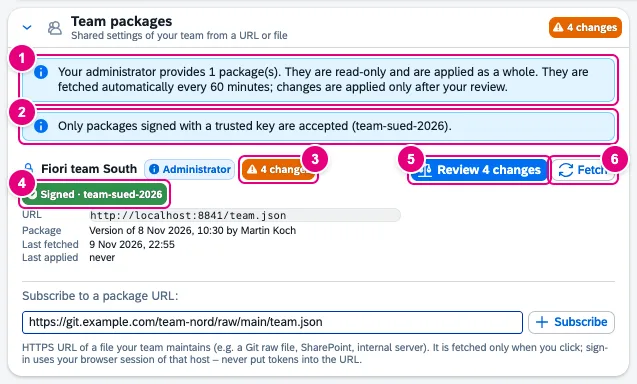
- If your administrator provides packages, this says how many and whether they are fetched on a schedule – here every 60 minutes.
- If the policy requires signatures, FrontTailor names the trusted keys.
- The state of the source: “Not fetched yet”, “Up to date”, the number of open changes, “Access required” or “Error”.
- The signature: “Signed · …” with the key ID, “Unknown key”, “Unsigned” or “Invalid signature”.
- Review … changes opens the preview. Without open changes the button says Show.
- Fetch loads the current version. Without access to the host, the button says Allow access.
Each source lists the URL, the package version (date and author), Last fetched and Last applied. You can have up to 20 own sources.
Review and pick changes
The preview compares the package with your settings, section by section. Each change is marked New, Changed or Removed and shows the fields before → after. Only entries that earlier came from this source and are missing from the package are removed; team sync never deletes what you created yourself.
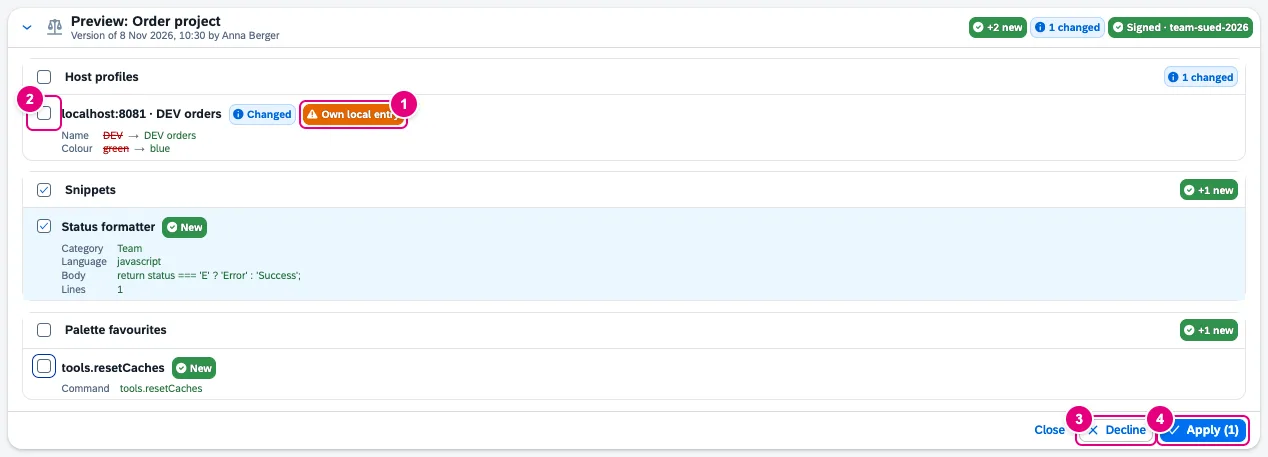
- Conflicts show as a tag on the change: “Own local entry” (same key, but not from this source) or “Changed locally” (from this source, changed by you since).
- One checkbox per change, one per section. Conflicts are not preselected – your version stays unless you select the change.
- Decline declines all open changes. They are suggested again only when their value in the package changes.
- Apply (n) applies the selected changes. Whatever you did not select counts as declined.
Other notes in the preview: “This package is not signed. Only apply it if you trust where it comes from.” for unsigned packages, and “Invalid package entries skipped: n.” when single entries were invalid – the rest of the package stays usable.
Packages provided by your administrator
Your administrator can provide packages by policy (up to 10). They are listed with the tag Administrator and cannot be removed. With a schedule set, FrontTailor fetches them automatically – they are still applied only after your review. The source then shows the number of open changes.
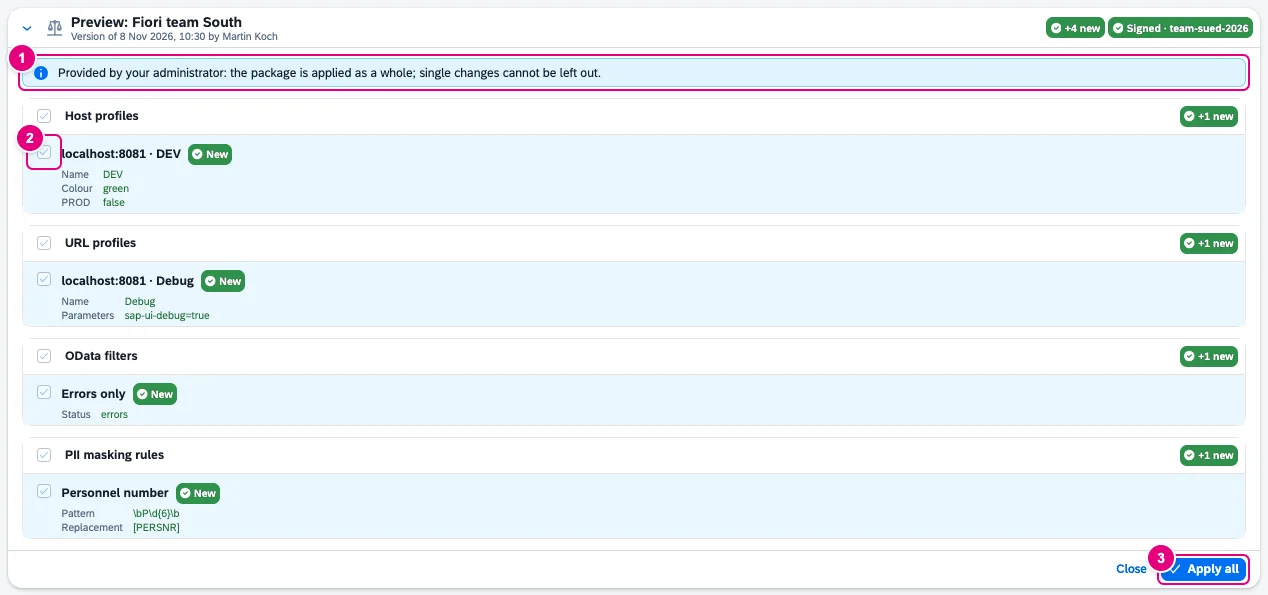
- “Provided by your administrator: the package is applied as a whole; single changes cannot be left out.”
- All changes are selected and locked.
- Apply all applies the package. If you changed provided entries locally, they show as “Changed locally” on the next fetch and are reset with the package.
If the policy requires signatures, FrontTailor accepts only packages signed with one of the configured keys – provided packages, own subscriptions and imports alike. An invalid signature is always rejected. What administrators can configure is described under Policy for team packages.
Import and export
Without a URL, it also works by file or clipboard, in the Import & export card.
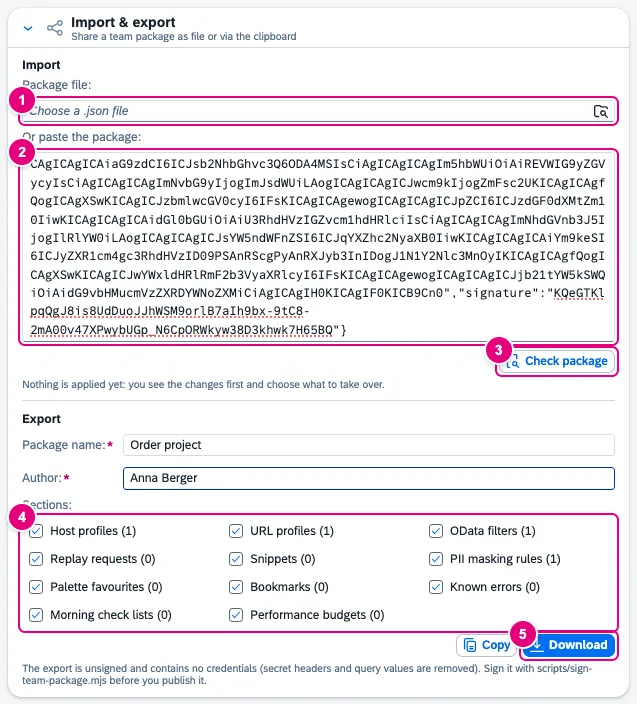
- Package file: choose a
.jsonfile. - Or paste the package: paste the content of the file – a signed package exactly as it is.
- Check package opens the preview. “Nothing is applied yet” – you pick changes just like with a subscription.
- Sections for the export, with the number of your local entries per section.
- Download saves the package as a file, Copy puts it on the clipboard. Package name and author are required.
The export is unsigned and contains no credentials: secret headers and query values are removed. Whoever publishes it as a team package signs it first – see Sign a package.
Local settings and removing sources
The Local settings card (collapsed at first) shows, per section, how many entries this browser holds and where they come from.
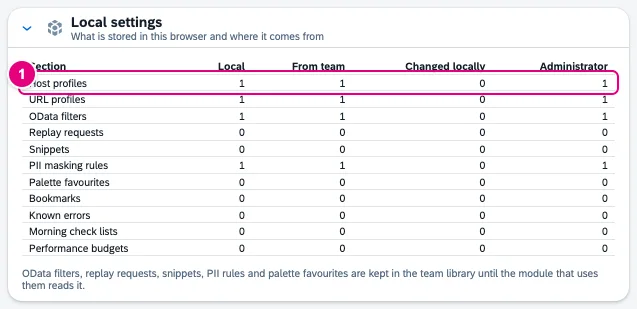
- One row per section: Local (all entries), From team, Changed locally (from the team, changed by you since) and Administrator (from provided packages).
Remove source (bin icon at the source) drops an own subscription or import. The applied entries stay and from then on count as your local entries.
| Button | Effect |
|---|---|
| Subscribe | Stores the URL as a source without fetching. |
| Fetch / Allow access | Loads the current version and opens the preview; asks for access to the host first if it is missing. |
| Review … changes / Show | Opens the preview of the last loaded version. |
| Apply (n) / Apply all | Writes the selected changes into your settings. |
| Decline | Declines all open changes; an import that was never applied is forgotten. |
| Check package | Checks a chosen or pasted package file and opens the preview. |
| Download / Copy | Exports the selected sections as an unsigned package. |
| Remove source | Removes an own subscription or import; the entries stay local. |
The tab has no shortcut of its own. Palette favourites from a package show up in the command palette (Alt+Shift+K), see Command palette.
What is transferred
When fetching, the extension’s service worker sends a plain GET request to the package URL – with what the browser sends for that address anyway, including the cookies of your session with that host. No data from your SAP systems or from FrontTailor goes out. Sources, packages and the origin of entries are kept only in chrome.storage.local, never in synced storage. More under Privacy.
Common problems
| Message | Cause and fix |
|---|---|
| “Team sync needs a Team or Enterprise licence that covers this SAP system.” | Team sync is part of the Team edition. If your licence is bound to SAP systems, open an app on one of them. |
| “The URL contains a token or password parameter. …” | Tokens do not belong in the URL. Sign in to the host in the browser instead. |
| “Only HTTPS URLs are allowed (HTTP only for localhost).” | Use the HTTPS address of the file. |
| “The response is no JSON file. …” | Usually a sign-in page came back. Open the URL once in the browser and sign in. For Git services, use the raw address of the file. |
| “Access required” | Access to the host is missing. Click Allow access. |
| “Your administrator only allows signed packages. …” or “The package is signed with a key your administrator does not trust.” | The package must be signed with a key from the policy. Contact whoever maintains the package. |
| “The signature does not match the content. The package was rejected.” | The file was changed after signing. Have it signed again. |
| “The package needs a newer FrontTailor version. …” | Update the extension. |
| “Your administrator does not allow own packages.” | The policy allows only the provided packages; own subscriptions and imports are switched off. |
| The Team tab is missing | Your administrator switched the module off. |
See also
- Features at a glance Features · Team
- Further reading Git und SAP – Versionsverwaltung und Transporte (SAP PRESS)
- Further reading SAPUI5 – The Comprehensive Guide (SAP PRESS)
- Help from people Coaching and MasterCLASS with the authors’ team
- Docs Team packages
- Docs Host profiles and PROD
- Docs Report a problem
- Docs Command palette
- Sources ADR-0211