Model explorer
The model explorer shows what is in the app’s models – without a breakpoint and without a single extra request. It lists the models with their type, shows their data as a searchable tree, compares the state before and after an action and finds a control’s i18n texts in every loaded language.
- Edition
- Community
- Tab
- “Models”
- Surface
- DevTools panel only (F12)
- Requests
- none – only the app’s cache
- On PROD
- read only, no lock needed
The tab at a glance
The Models tab exists in the DevTools panel only: F12 → FrontTailor panel → Models. Without a selected control it shows the models of the app’s root components; with a control, that control’s own and propagated models.
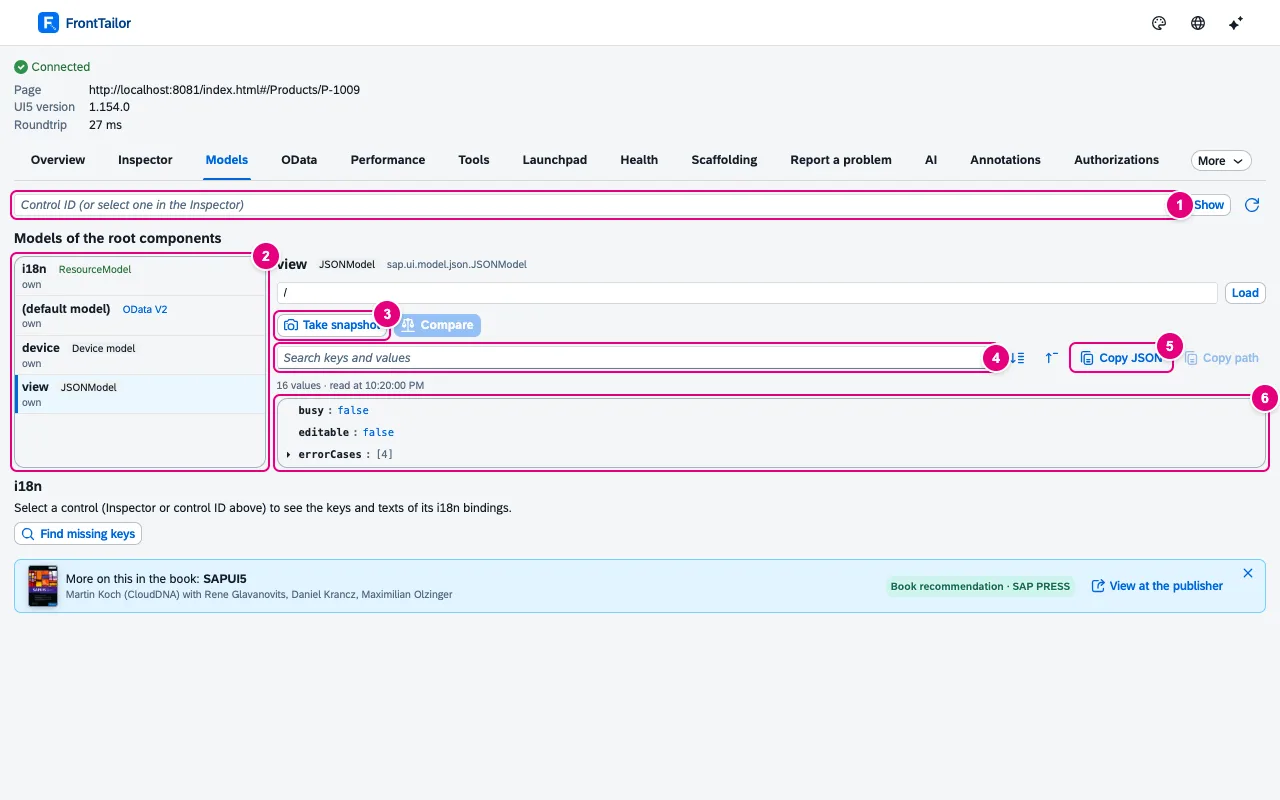
view model: a JSONModel with 16 values.- Enter a Control ID and Show selects a control without the inspector. App models clears the selection, the icon on the right refreshes the list.
- The list of models: name (the unnamed one is (default model)), type and whether the model is own or propagated.
- Take snapshot and Compare, see snapshot and diff.
- Search keys and values: matches stay with their ancestors. Next to it Expand all and Collapse all.
- Copy JSON takes the shown subtree, Copy path the path of the selected node, such as
view>/editable. - The tree with the data. Above it you see how many values were read and when.
| Type in the list | What the tree shows |
|---|---|
| OData V2 | The entities in the model’s cache, grouped by entity set. |
| OData V4 | The data of the bindings’ current contexts. |
| JSONModel · XMLModel | The model’s data. |
| ResourceModel | The i18n bundle; the i18n section shows the texts of a control. |
| Device model | UI5’s device information. Functions and deep objects are summarised. |
| Other model | Custom model classes, as far as they can be read. |
With the Path field and Load you fetch one subtree. Large models need this: the tree reads up to 12 levels deep, 20,000 values and 2,000 characters per text; beyond that it says “Large model: the data was truncated …”.
OData models: what is already loaded
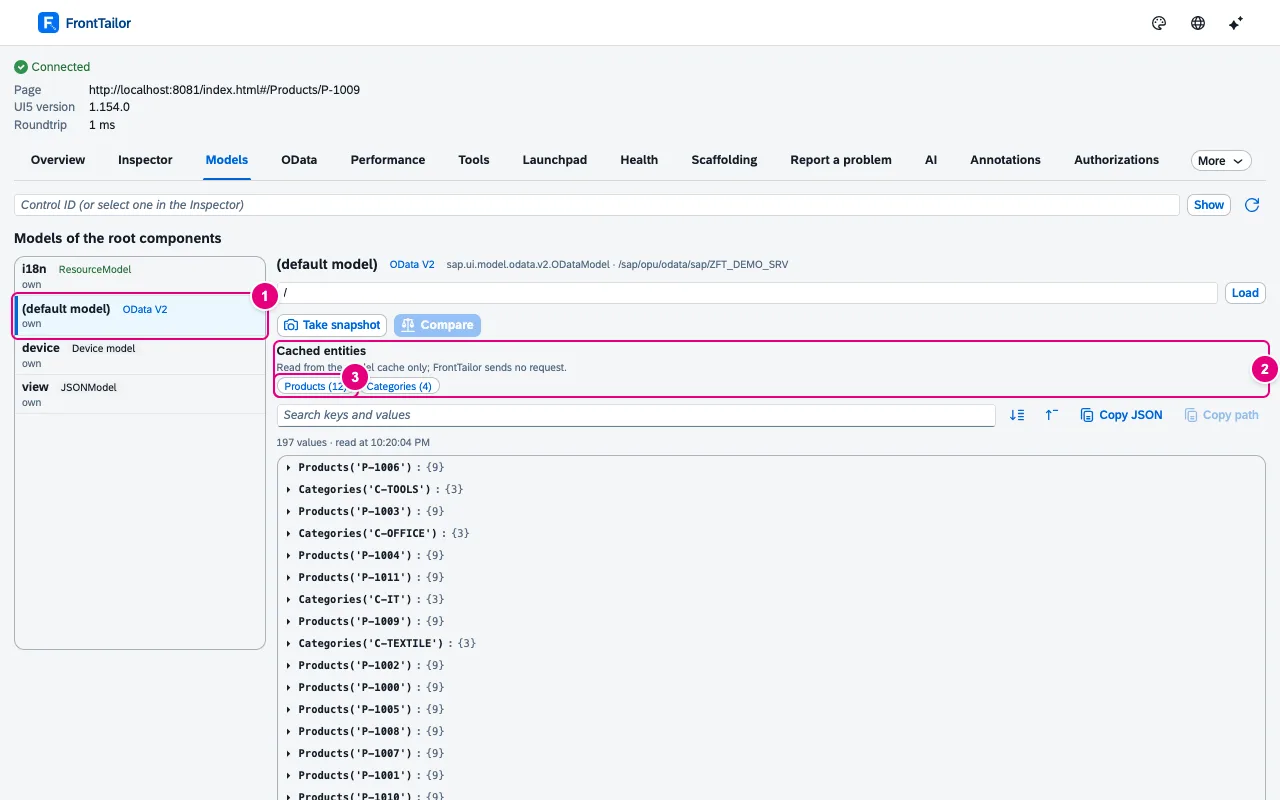
- The (default model) of type OData V2, with class and service URL on the right.
- Cached entities: “Read from the model cache only; FrontTailor sends no request.”
- An entity set with the number of entities in the cache. A click filters the tree to it.
If an entity is missing, the app has not loaded it (yet). What the backend actually sent is shown in the OData console.
Snapshot and diff: what an action changes
- In the Models tab, choose the model, for example
view. - Click Take snapshot. It says “Snapshot from … Now do something in the app, then compare.”
- Run the action in the app – in the example Edit in the demo app.
- Click Compare. Changes since the snapshot lists every path as added, removed or changed, with old and new value.
- Discard snapshot starts over.

/editable switches from false to true.- Compare reads the model again and compares it with the snapshot.
- One change: kind, path, old value, new value.
The first 1,000 changes are shown; with more, a note appears below.
i18n: key, bundle and texts per language
When a control is selected (in the Inspector or by control ID), the i18n section shows every property bound to a resource model.
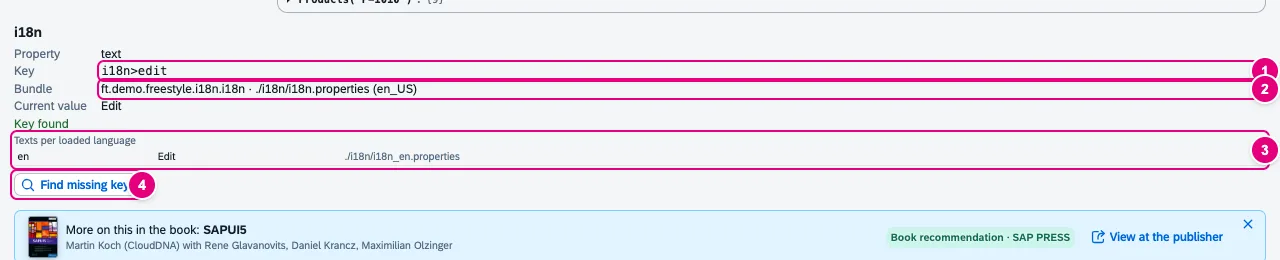
- Key with model name, e.g.
i18n>edit. - Bundle: name and file of the resource bundle.
- Texts per loaded language; fallback languages UI5 has not fetched yet are listed as not loaded. FrontTailor loads no language itself.
- Find missing keys checks every control on the page and lists texts that are shown as a key (up to 200 entries). Show control jumps to the finding.
Next to the key it says Key found, Key missing or that this cannot be told without loading a language.
Bound controls
For a node in the tree, Find bound controls looks for the controls whose bindings use this node or a node below it – in one pass over the page’s controls. A click on a hit selects the control in the inspector. The other way round, Show in Model Explorer in the inspector opens this tab right at the bound path.
All buttons and fields
| Element | Effect |
|---|---|
| Control ID · Show | Show the models and i18n bindings of this control. |
| App models | Clear the selection, back to the app’s models. |
| Refresh | Read list and data again, for example after the app loaded more. |
| Path · Load | Read only this subtree. |
| Search keys and values | Matches with ancestors; above 2,000 matches: “refine the search”. |
| Expand all · Collapse all | Open or close the whole tree. |
| Copy JSON · Copy path | Subtree as JSON or binding path to the clipboard. |
| Take snapshot · Compare · Discard snapshot | Remember the state, show differences, delete the snapshot. |
| Find missing keys | Check all controls for texts shown as a key. |
| Find bound controls | Find the controls that use the selected node. |
Typical problems
| Problem | Solution |
|---|---|
| The Models tab is missing | It is in the DevTools panel only, not in the side panel. F12 → FrontTailor. |
| No models found. | The app has not started a component yet, or the selected control has no models. App models shows the app’s models. |
| An entity is missing in the OData model | The explorer only shows what UI5 has already loaded. Refresh after loading in the app; the requests are in the OData console. |
| Large model: the data was truncated | Enter a path and Load to read only a part. |
| The model no longer exists. | The app replaced the model, for example after a navigation. Refresh. |
See also
- Features at a glance Features · Inspector & Models
- Further reading SAPUI5 – The Comprehensive Guide (SAP PRESS)
- Help from people Hands-on workshops on SAPUI5, Fiori elements, OData and CAP
- Docs Inspector
- Docs OData console
- Sources ADR-0061