Report a problem
The “Report a problem” tab builds a bug report that development or support can work with without asking back: screenshot with markup, the last actions, failed requests, errors and system info. Personal data is masked first, and nothing leaves the browser before your preview and your click.
- Edition
- from Pro
- Tab
- “Report a problem”
- Shortcut
- Alt+Shift+R
- Targets
- Clipboard, e-mail, file, GitHub, ticket systems
- Tickets
- Jira, GitHub, GitLab, Azure DevOps (Pro), ServiceNow (Enterprise)
- On PROD
- unrestricted, the report changes nothing in the app
Start a report
There are three ways, and all three immediately take a screenshot of the visible area:
- Report a problem in the extension’s popup (click the icon in the toolbar),
- the shortcut Alt+Shift+R,
- the Report a problem command in the command palette.
The side panel then opens with the Report a problem tab. You can also open the tab directly. Take screenshot in the panel works as long as Chrome still allows the capture after your last click on the icon or the shortcut; otherwise the tab tells you what to do. A report without a screenshot always works. from Pro
Describe and mark up
- Enter a Title and describe what happened under Description.
- Mark the spot in the screenshot with Rectangle or Arrow. Hide sensitive areas with Pixelate.
- Choose under Context what goes into the report.
- Choose the Target and click Preview and send….
- Check the report and click the target’s button, for example Copy Markdown.
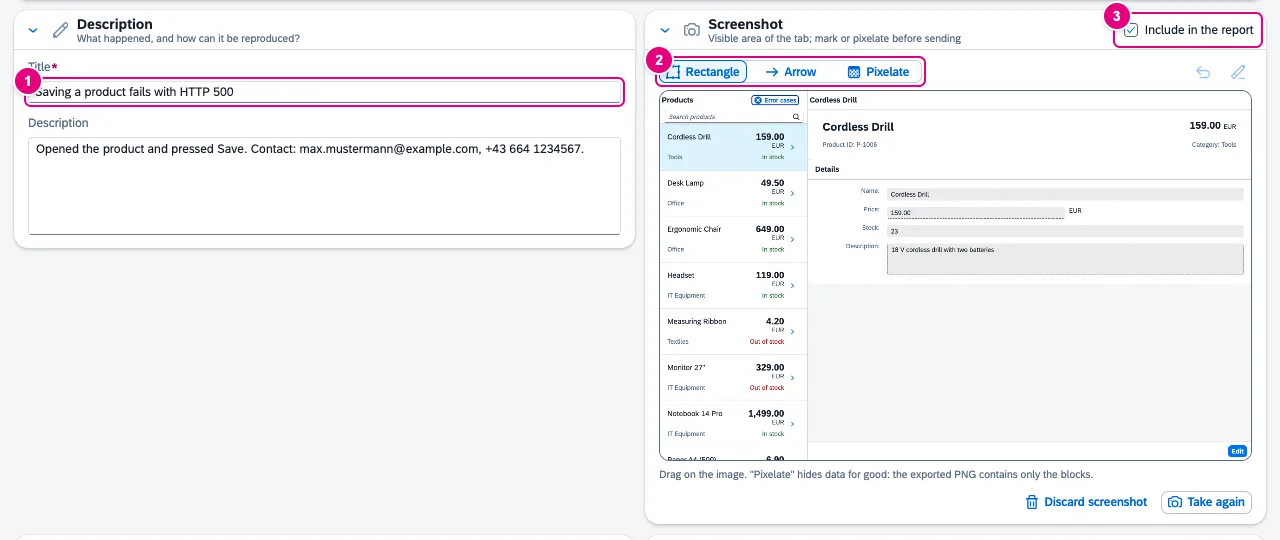
- Title (required) and Description.
- The markup tools Rectangle, Arrow and Pixelate; on the right Undo and Remove markup.
- Include in the report decides whether the screenshot goes along.
Pixelate replaces each block with its average. The exported image contains only the blocks – the original pixels are gone, unlike with a blur. FrontTailor does not mask text in the screenshot automatically; that is what Pixelate is for.
What the report contains
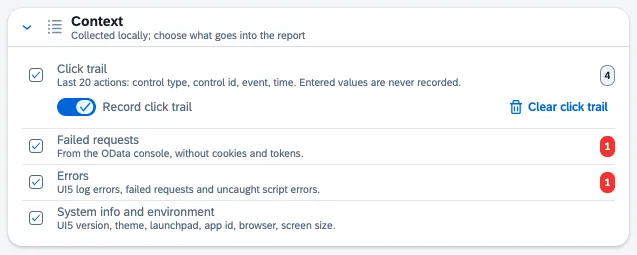
| Part | Content |
|---|---|
| Click trail | The last 20 actions: control type, control ID, event, time. Typed values, texts or page content are never recorded. Only active when Record click trail is on; Clear click trail deletes it. |
| Failed requests | From the OData console: status 400 and above, network errors, failed $batch parts, at most 20, without cookies and tokens. |
| Errors | UI5 log errors, failed requests and uncaught script errors. |
| System info and environment | UI5 version, theme, launchpad, app ID, browser, screen size, time zone. |
FrontTailor removes parameters with credentials or session reference from the address, including the launchpad hash. More precise than the click trail is a recording with the recorder: Use as … → Bug report (steps to reproduce) attaches all steps as a table to the report.
Privacy: masking
Under Privacy you decide what is masked – in the title and the whole report, before the preview appears:
| Rule | Finds |
|---|---|
| E-mail addresses | name@example.com |
| Phone numbers | Start with +, 00 or 0, at least 7 digits; dates, times and versions do not count. |
| IBAN | Only with a valid checksum. |
| Long digit sequences | Personnel and document numbers, from 8 digits on by default, adjustable. |
| Names from the list | Whole words, case-insensitive. |
| Custom rules (regular expressions) | Name, pattern and replacement, e.g. KD-\d+. |
Rules your administrator sets by policy are marked Policy and cannot be switched off. The same rules apply to the mock data in Scaffolding and to masked inputs in the recorder.
Preview and targets
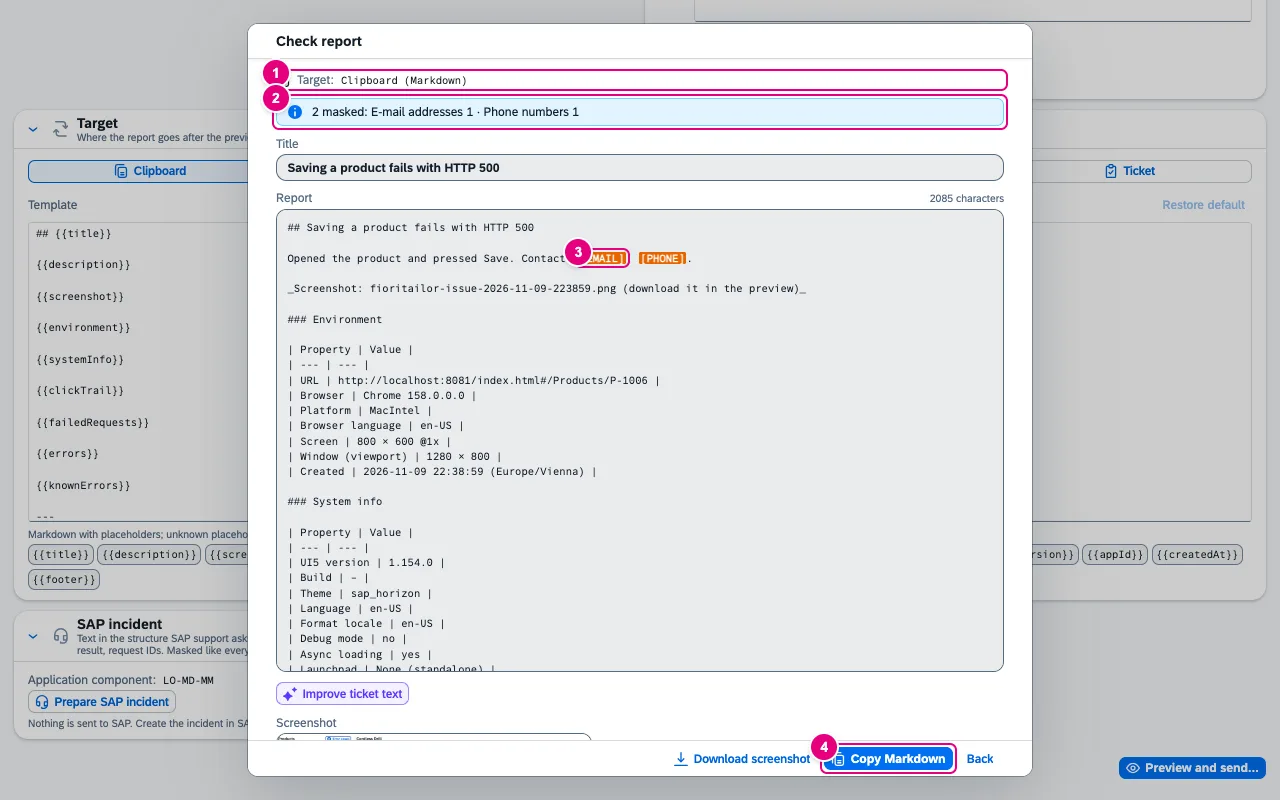
- The report’s Target.
- How many values were masked, per rule.
- Each replacement is highlighted in the text.
- Only this click hands the report on. Back changes nothing.
| Target | What happens |
|---|---|
| Clipboard | Markdown to the clipboard. |
| Opens your e-mail program with subject and text; the full text is also on the clipboard. You download the screenshot separately. | |
| File | Downloads Markdown and PNG with the same name. |
| GitHub | Opens a new issue in the configured repository in a new tab; drag the screenshot in there. |
| Ticket | A configured ticket system, see below. |
With these targets FrontTailor sends nothing itself: the report goes to your clipboard, a file, your e-mail program or a new browser tab. Under Template you adjust the Markdown layout per target; placeholders in double curly braces, such as title, clickTrail or failedRequests, are filled, unknown ones stay visible. Your administrator can restrict the allowed targets.
Tickets in Jira, GitHub, GitLab, Azure DevOps and ServiceNow
Choose Ticket as the target and set up a system under Manage ticket systems. Jira (Cloud and Data Center), GitHub Issues, GitLab Issues and Azure DevOps are part of Pro; ServiceNow (Incident) needs Enterprise. from Enterprise
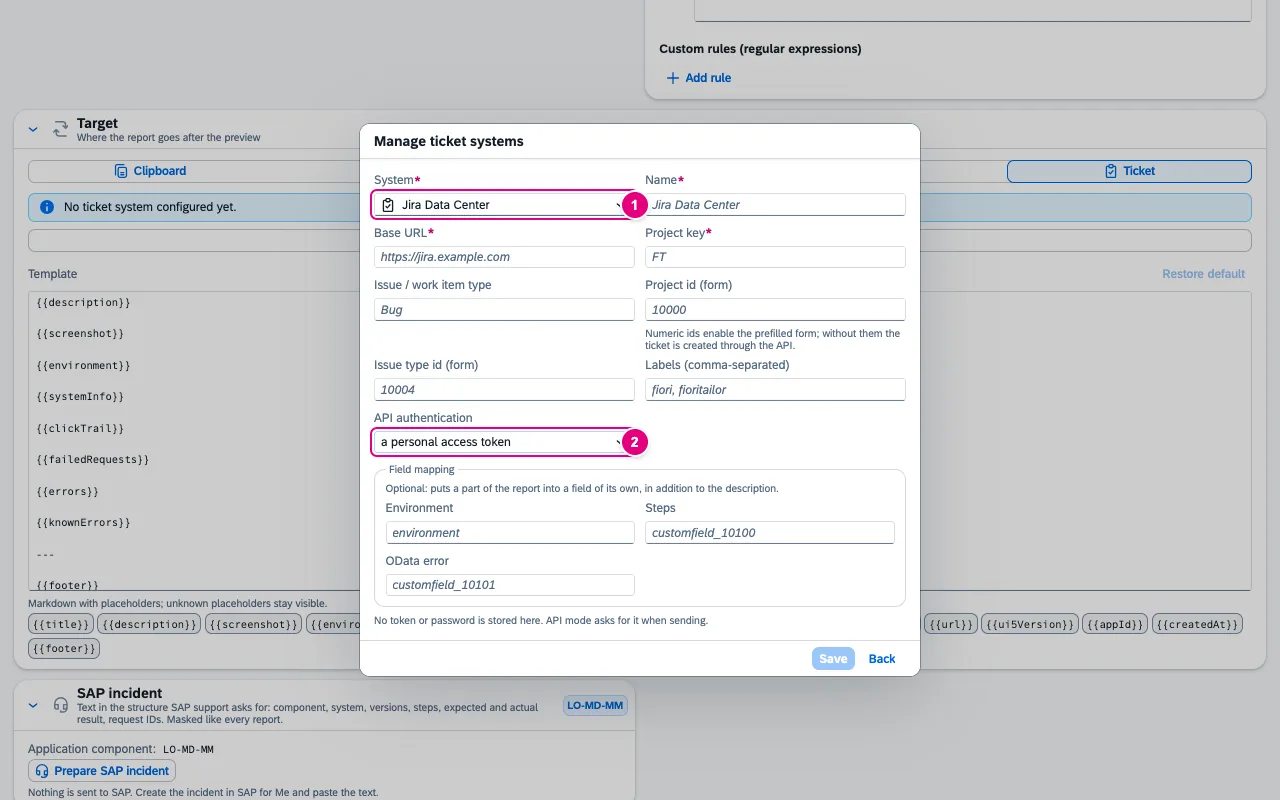
- System: Jira Cloud, Jira Data Center, GitHub Issues, GitLab Issues, Azure DevOps or ServiceNow (Incident).
- API authentication for the direct way. It is asked for when sending; nothing is stored here.
Each system offers two ways:
- Open prefilled form (default where possible): FrontTailor opens the ticket system’s create page in a new tab, with title and description. You are signed in there as usual and submit it yourself. No token needed. For Jira this needs numeric project and issue type IDs.
- Create directly (API): after your click, FrontTailor creates the ticket and uploads attachments where the system allows it. The preview lists every request beforehand with method, address and content. On the first send, the browser asks for access to the ticket system’s address.
You enter token and password when sending. With Keep while FrontTailor is active, FrontTailor holds them only in the background’s memory – never in a storage area or on disk. When Chrome ends the background after a short idle time, the token is forgotten; Forget deletes it at once.
Prepare an SAP incident
The SAP incident card shows the application component from the app’s manifest (sap.app.ach) – or a note that it is missing. Prepare SAP incident turns it into a text in the structure SAP support expects.
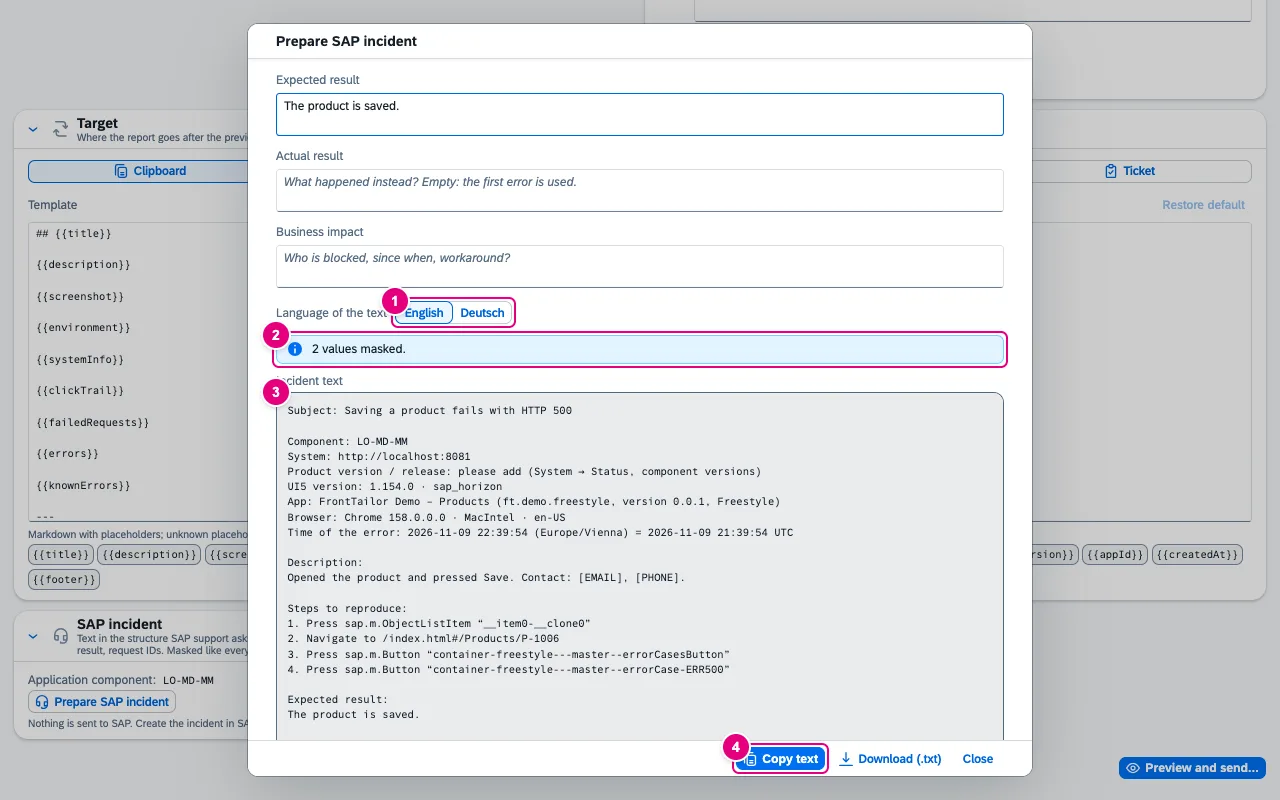
- Language of the text: English or German, independent of the UI.
- How many values were masked – the same rules as for the report apply.
- The text: subject, component, system, release (with a note where to find it), UI5 version, app, browser, time, description, steps, expected and actual result, impact and the failed requests with request IDs.
- Copy text; next to it Download (.txt).
Nothing is sent to SAP: you create the incident in SAP for Me yourself and paste the text. Search the SAP knowledge base copies a search term from component and first error text to the clipboard and opens the search in SAP for Me. from Pro
Common problems
| Message or symptom | Cause and fix |
|---|---|
| “Chrome allows screenshots only after you clicked …” | Chrome only allows the capture after a click on the extension’s icon or Alt+Shift+R. Then take it again – or report without a screenshot. |
| “The tab is not visible.” | Bring the tab to the front and take the screenshot again. |
| Click trail empty | Record click trail is off. Switch it on and repeat the steps. |
| No failed requests in the report | The OData console is switched off by your administrator; without it there are no failed requests. |
| Ticket system locked with an edition tag | ServiceNow needs Enterprise, the other systems Pro. |
| No prefilled form for Jira | Without numeric project and issue type IDs, Jira only offers the direct way via the API. |
| Token asked for again after a break | Intended: the kept token lives only in memory and disappears when Chrome ends the background. |
See also
- Features at a glance Features · Test & report
- Further reading SAPUI5 – The Comprehensive Guide (SAP PRESS)
- Further reading Security and Authorizations for SAP Business Technology Platform (SAP PRESS)
- Help from people Release and transport quality
- Docs Scaffolding & recorder
- Docs OData console
- Docs Permissions and privacy
- Sources ADR-0171 · ADR-0312 · ADR-0413