Local code
With “Local code”, the real system loads the files of a UI5 app from your dev server. Launchpad, roles, data, plugins and UI5 itself stay on the system – only your own code comes from localhost. This applies to this tab only, a banner in the page shows it, and one click switches back.
- Edition
- from Pro
- Tab
- “Local code”
- Surfaces
- DevTools panel and side panel
- Targets
- localhost, 127.0.0.1, [::1], *.localhost, confirmed https dev hosts
- On PROD
- switching on locked, switching off always possible
Why “Local code”?
Some bugs only show in the real launchpad: with the real tile, the real roles, real data and the system’s plugins. Until now that meant: build, deploy, clear the cache, test. With the Local code tab, FrontTailor redirects the requests for an app’s files to your dev server (ui5 serve, fiori run or the preview in SAP Business Application Studio). Everything else still comes from the system. Only your own code is loaded; nothing is uploaded.
The redirect applies to the current tab only and ends when you switch it off, close the tab, restart the browser or the extension is updated. from Pro
The tab has three areas: Mappings (which app goes to which dev server), New mapping and How it works with a short guide. Once you have confirmed https dev hosts, Trusted dev hosts appears below.
Create a mapping
- Start your dev server, for example
ui5 serve --port 8080orfiori run. - Open the app on the system – in the launchpad: start it –, then the Local code tab in the panel.
- Under Apps on this page you see the detected UI5 apps. Click Use next to your app; app ID and path on the system are then filled in. If the app is missing, click Search again.
- Under Dev server URL, enter the address where your server delivers the app’s
manifest.json, for examplehttp://localhost:8080/. - Click Save mapping.
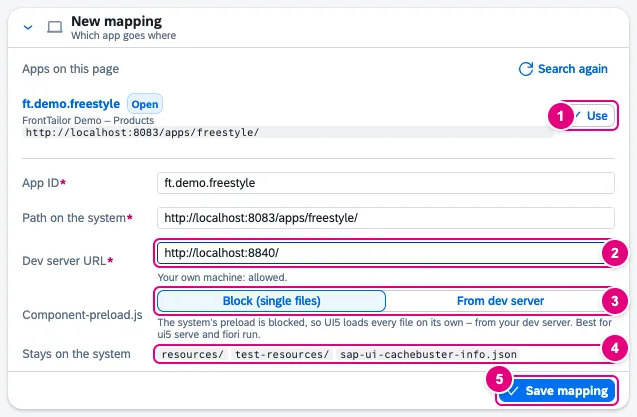
- Use fills the app ID (
sap.app.id) and the Path on the system from the detected app. Open marks the app that is currently running. - Dev server URL. Right below, you see whether the target is allowed – here “Your own machine: allowed.”
- Component-preload.js: Block (single files) is the default and right for
ui5 serveandfiori run– UI5 then loads every file on its own from your dev server. Use From dev server only if your server builds a preload itself (for example from adistfolder). - Stays on the system: FrontTailor never redirects these paths, among them
resources/,test-resources/,sap-ui-cachebuster-info.jsonand the backend services from the app’s manifest. - Save mapping stores the mapping for this system. Nothing is switched on yet.
Mappings apply per system (host). FrontTailor stores up to 30 mappings per host, locally in the browser. Use Edit and Delete to change them later.
Check the dev server
Before switching on, click Check on the mapping. FrontTailor then fetches – only on this click – the manifest.json under the dev server URL and compares the app ID.
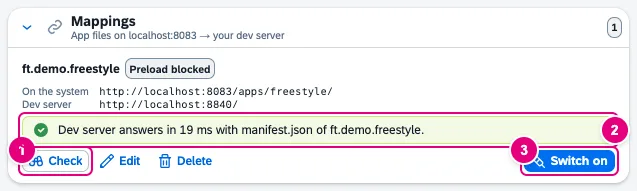
- Check asks the dev server for the
manifest.json. - The result, here “Dev server answers in … ms with manifest.json of ft.demo.freestyle.” Other results are listed under Common problems.
- Switch on starts the redirect (see next section).
Switch on
- Click Switch on on the mapping.
- Read in the dialog what will happen: which path goes where, how Component-preload.js is handled and what stays on the system.
- Tick I want to run my local code in this tab.
- Click Switch on and reload. The page reloads without cache and fetches the app’s files from your dev server.
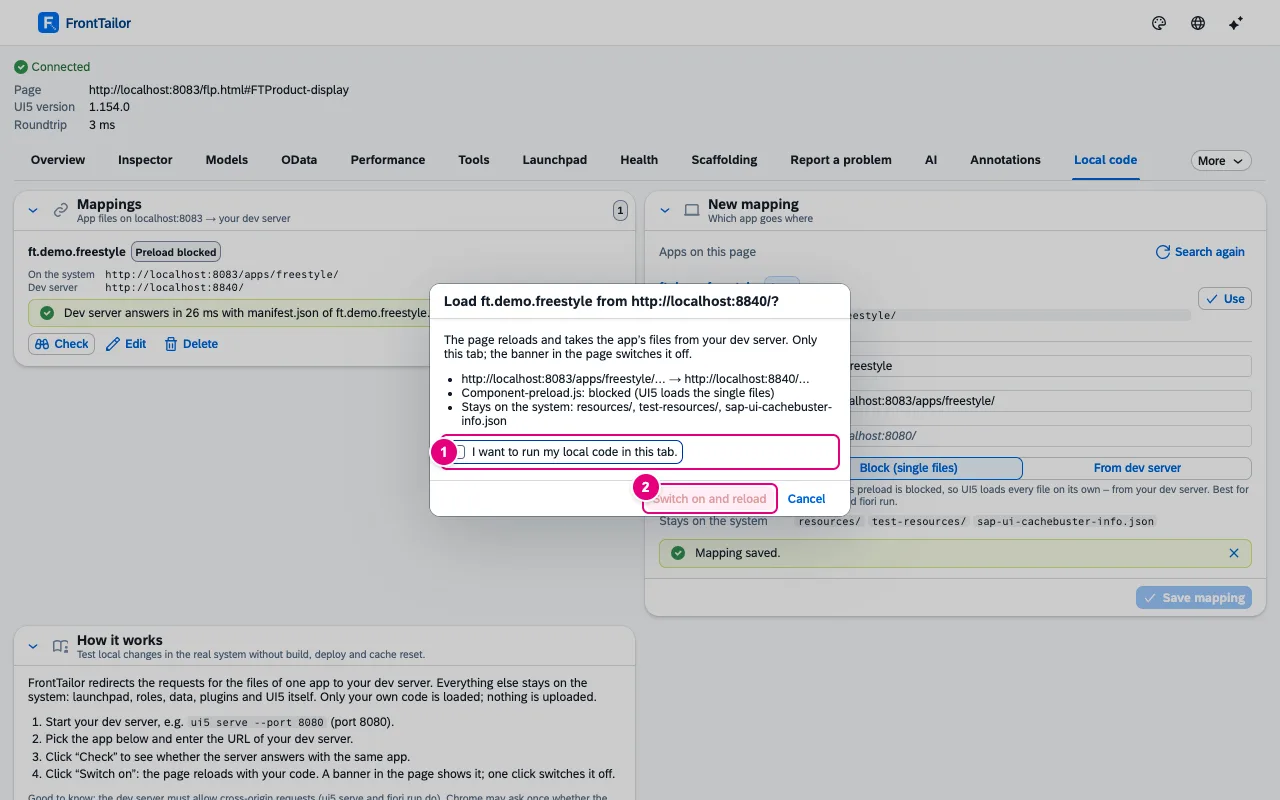
- Without this tick the button stays disabled.
- Switch on and reload. Cancel leaves everything as it is.
If FrontTailor has no access to the system yet, the browser asks for it when you switch on (see Allow access to a page). Access is needed for the origin of the app files and the origin of the page. Only one redirect is active per tab.
How you can tell local code is running
While the redirect is active, the page shows a Local code active banner at the bottom with the dev server address and the app ID. It belongs to the extension, not to the app, and does not appear in print.
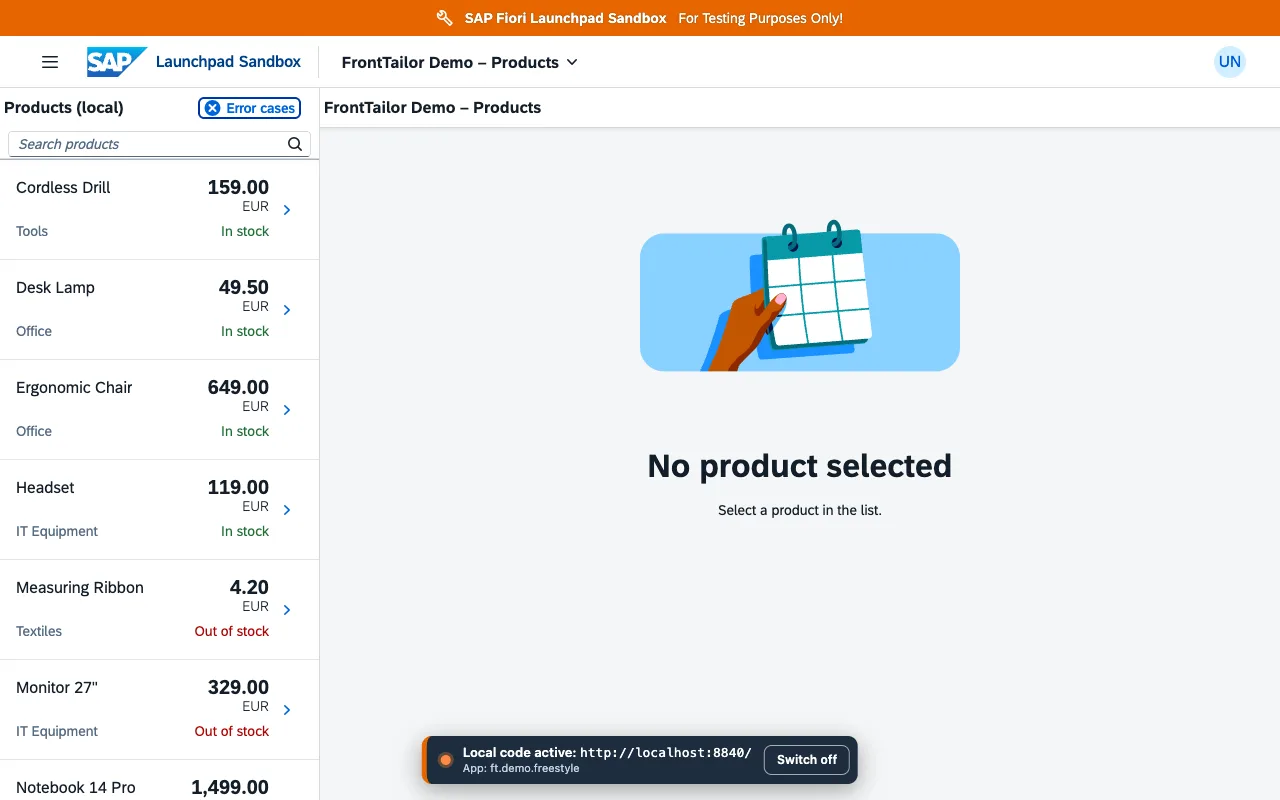
Master.view.xml comes from the dev server: the list title now reads “Products (local)”. The banner at the bottom.In the panel, a notice above the mappings shows the same information; the active mapping carries the Active tag.

- Switch off ends the redirect and loads the deployed app.
- The Active tag on the mapping that is in effect.
Switch off
Three ways lead back to the deployed app:
- Switch off in the banner in the page,
- Switch off in the panel,
- the command Switch local code off (<target>) in the command palette – it only appears while a redirect is active.
Switching off always works: on PROD too, with an expired licence and even if your administrator has switched the module off by policy. Closing the tab ends the redirect as well.
Allowed targets and trusted dev hosts
| Target | Allowed? |
|---|---|
localhost, 127.0.0.1, [::1], *.localhost – any port, http or https | Yes, without asking. |
| Another host over https, for example the preview in SAP Business Application Studio | Only after you confirm: when saving, FrontTailor asks “Trust this dev host?”. Known BAS hosts are labelled as such, all others come with a warning. Up to 20 confirmed hosts; remove them under Trusted dev hosts. |
| http to another host, other schemes, URLs with user or password | No. |
FrontTailor does not run the code itself and does not load it into the extension: the browser fetches the files as usual, just from another address. FrontTailor stores no credentials for this.
Good to know
- CORS: the dev server must allow cross-origin requests.
ui5 serveandfiori rundo. - Local network: Chrome may ask once whether the system may access devices on your local network. Allow it.
- Content Security Policy: a strict CSP on the system can block localhost. The app then does not start; switching off restores it.
- BAS: the preview requires a login. Open the preview URL once in this browser and sign in.
- The app’s service worker: if the app has its own service worker, it can answer from its cache and bypass the redirect. Clear the cache then (see Tools).
- One root per mapping: your own libraries that the app loads from another path need their own mapping.
Common problems
| Message | Cause and fix |
|---|---|
| “No answer from …” | The dev server is not running on this port or does not allow cross-origin requests. |
| “… returns 404” | The URL must point to the folder with the manifest.json – with ui5 serve, the server root. |
| “… belongs to … instead of …” | The server delivers another app. Check the URL or the mapping. |
| “… has no sap.app.id” or “… is not JSON” | The URL does not point to the app’s webapp folder. |
| “… requires a login” | Typical for BAS: open the preview URL once in the browser and sign in. |
| “Target not allowed” | Only localhost or a confirmed https dev host, see Allowed targets. |
| “The dev server URL is inside the path on the system” | That would be a loop. Target and path on the system must differ. |
| “FrontTailor has no access to this system yet” | Click switch on again and allow access. |
| “No UI5 app found yet” | The app has not started yet. Open the app in the launchpad and click Search again. |
| The app does not start after switching on | Often a strict CSP or missing CORS. Switching off restores the deployed app. |
See also
- Features at a glance Features · Test & report
- Further reading Git und SAP – Versionsverwaltung und Transporte (SAP PRESS)
- Further reading SAPUI5 – The Comprehensive Guide (SAP PRESS)
- Help from people Custom Fiori, UI5 and CAP apps
- Docs Tools
- Docs Host profiles and PROD
- Docs Command palette
- Sources ADR-0361