Launchpad inspector
The launchpad inspector answers the most common question when running SAP Fiori® launchpads: which app does this tile open, and why? You click a tile and see intent, target mapping, placement and the resolved component – plus a profile of the launchpad and the registered shell plugins. The tab is part of the Enterprise edition.
- Edition
- from Enterprise
- Tab
- “Launchpad”
- Surfaces
- DevTools panel and side panel
- Launchpads
- ABAP, central launchpad, SAP Build Work Zone, sandbox
- On PROD
- allowed – the tab changes nothing
The tab at a glance
Open the app in the launchpad, then the FrontTailor panel in DevTools (F12) or the side panel, and choose the Launchpad tab. The tab only reads the launchpad; it changes no tile, no role and no setting.
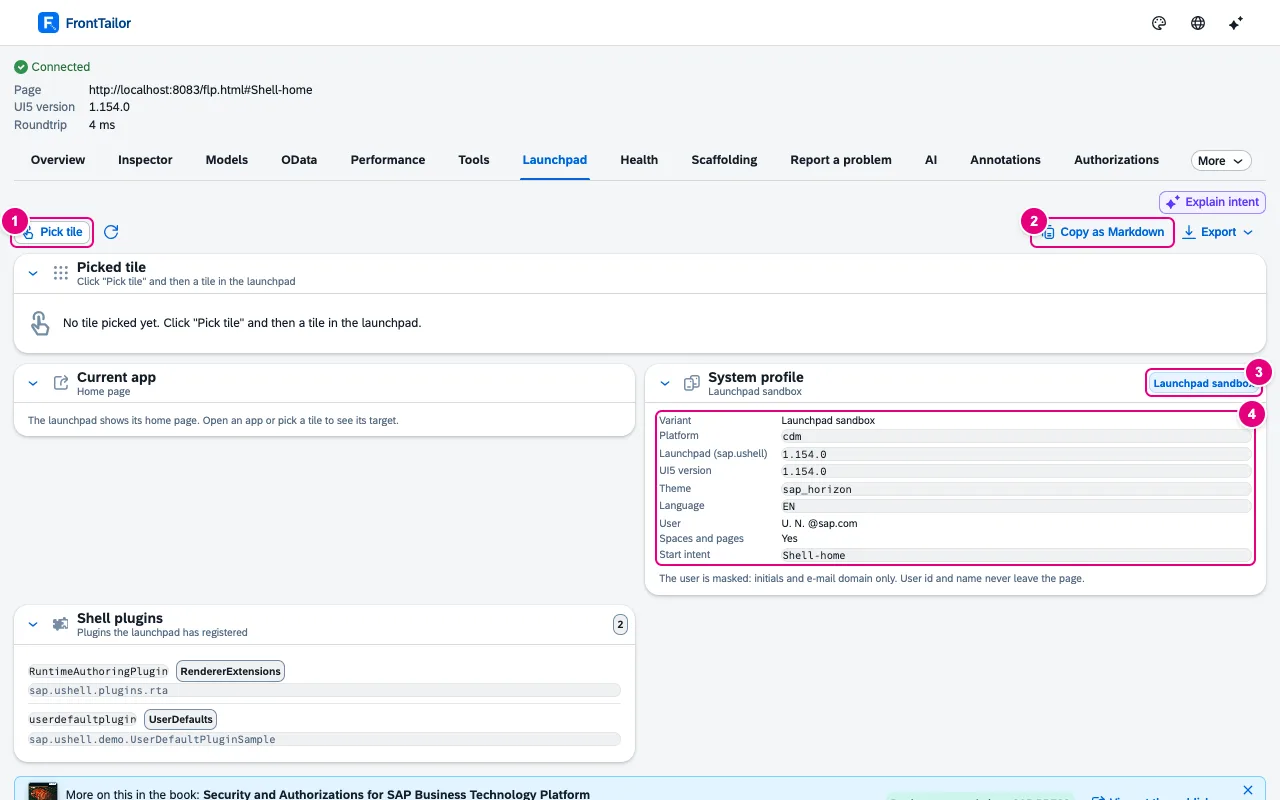
- Pick tile starts pick mode. Next to it, Refresh reads the launchpad again.
- Copy as Markdown puts the whole state on the clipboard; the Export menu next to it offers Copy as JSON, Download JSON and Download Markdown.
- The detected variant of the launchpad.
- The system profile: platform, launchpad version (
sap.ushell), UI5 version, theme, language, user, spaces and pages, start intent – depending on the launchpad also system, client, system role, product and content providers.
Below, Shell plugins lists the plugins the launchpad has registered, with their component and – if switched off – the note disabled. When you move to another app or back to the home page, the tab reads the state again by itself; it polls nothing in the background.
Inspect a tile
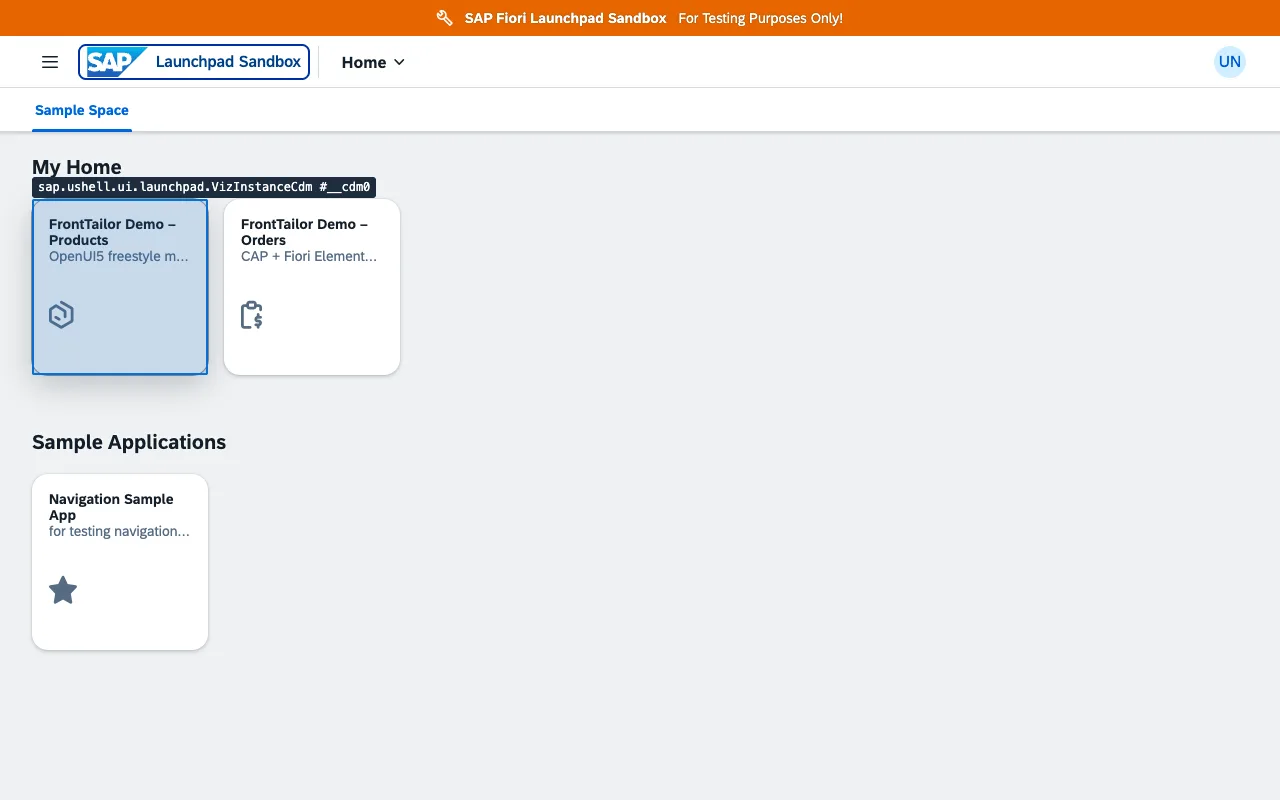
- Click Pick tile. The panel says: “Pick mode is on: click a tile in the launchpad to inspect it. The click does not open the app.”
- Move the mouse over the tiles. A frame shows the tile under the pointer.
- Click the tile. The app does not open; the tile stays marked for a moment. Esc or Stop picking cancels.
- The Picked tile card appears with the three sections below.
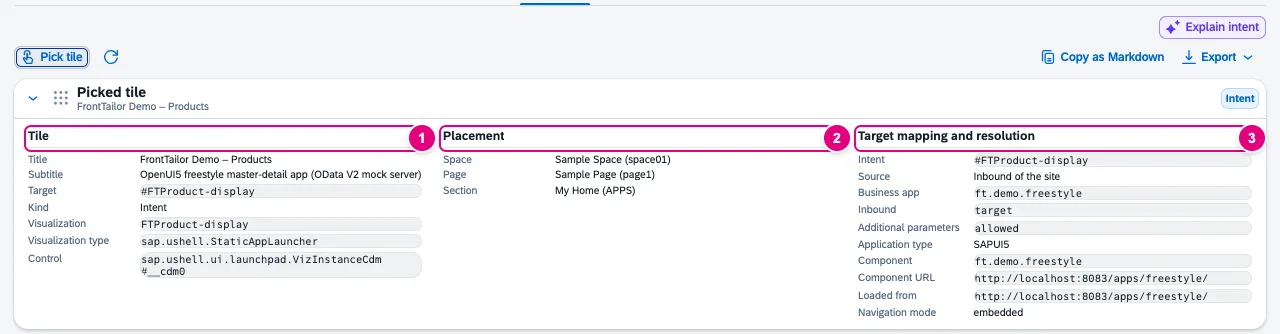
#FTProduct-display, resolved to the component ft.demo.freestyle.- Tile: title, subtitle, target, kind (intent or URL), visualization, visualization type and the control in the launchpad.
- Placement: space, page and section – in classic launchpads group and catalogs.
- Target mapping and resolution: intent, source, business app, inbound, parameters, application type, component, component URL and navigation mode.
The source says where the mapping comes from: Inbound of the site (the launchpad ships its inbounds to the browser) or Resolution of the launchpad. An ABAP launchpad keeps target mappings on the server; the tab then shows the note “This launchpad keeps target mappings on the server: only the resolution result is visible in the browser.” If an inbound has parameters, they appear in a table with required, default and filter.
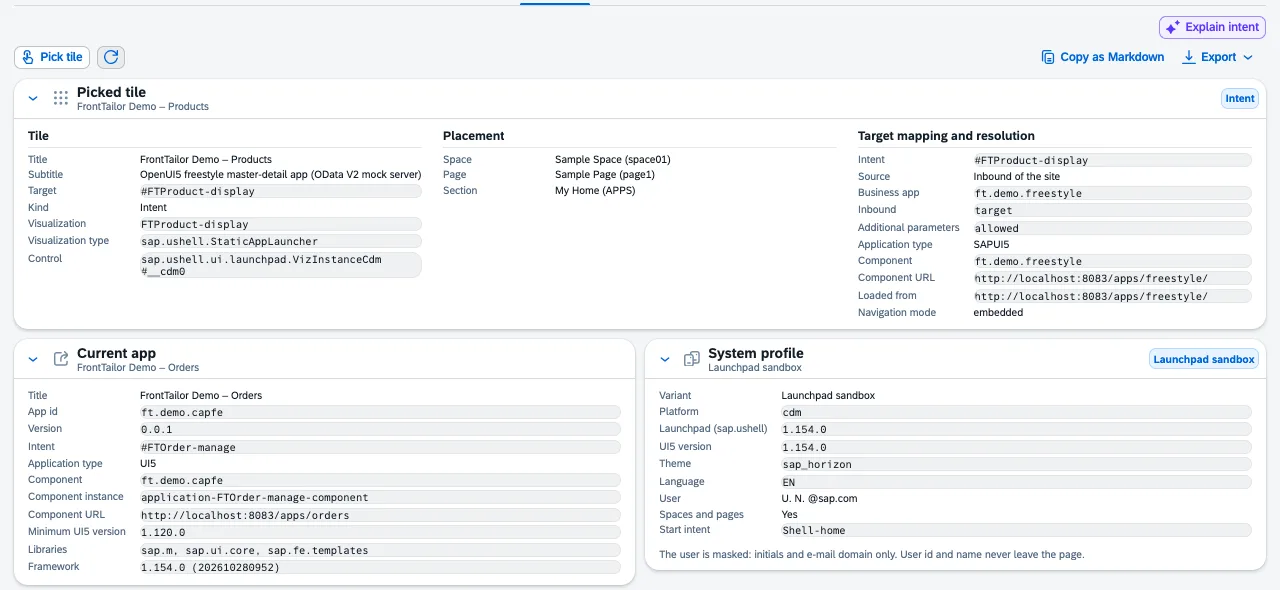
The current app
When an app is open in the launchpad, Current app shows title, app id, version, intent, application type, component, component URL, minimum UI5 version, libraries, reused components and startup parameters. On the home page it says that the launchpad shows its home page instead.
Detected launchpads
| Variant in the tab | Note |
|---|---|
| ABAP Fiori launchpad | Target mappings live on the server; the resolution result is visible. |
| Central launchpad (content federation) | with content providers in the profile |
| SAP Build Work Zone, standard edition or advanced edition | detection partly derived from the URL |
| Launchpad sandbox | local development, such as the demo launchpad |
| Unknown launchpad | There is a sap.ushell container, but no known variant. |
If the tab can only infer the variant from the URL, it adds (derived from the URL). If a launchpad version lacks an interface, the tab names what is missing as a result: “Not available in this launchpad version: …” – for example current app, spaces or registered plugins.
Share the result
Copy as Markdown fits into a ticket or a chat; JSON is handy for comparing two systems. Everything is created locally in the browser – FrontTailor sends nothing. The tab masks the user already in the display: initials and e-mail domain; user id and name never leave the page.
With from Pro you get the AI entry Explain intent at the top right – with your own key, see AI assistant.
Typical problems
| What you see | Cause and fix |
|---|---|
| No launchpad | The app runs without a launchpad (no sap.ushell container in the page). Open it from the launchpad. |
| A tile in search, the App Finder or the user menu cannot be picked | Pick mode does not recognise these places. Pick the same tile on a page or in a group. |
| No inbound, only the resolution | The launchpad keeps target mappings on the server (ABAP). That is not an error; the resolution shows what actually starts. |
| Variant with (derived from the URL) | The variant is an estimate. If in doubt, check the profile (platform, content providers). |

The launchpad inspector is tested on the demo’s launchpad sandbox. ABAP launchpads with spaces and classic groups and the detection of SAP Build Work Zone and the central launchpad are not yet fully tested on real systems.
See also
- Features at a glance Features · betrieb
- Further reading Configuring SAP Business Technology Platform – The Practical Guide for Administrators (SAP PRESS)
- Help from people Launchpad, roles and authorizations
- Docs Roles and authorizations
- Docs Health and morning check
- Docs Host profiles and PROD
- Sources ADR-0221