Getting started
From installation to the first Connected: load the extension, grant the app’s domain, then open the popup, side panel or DevTools panel. No account and no server – FrontTailor works locally in your browser.
- Browsers
- Chrome and Edge 137 or later
- Surfaces
- popup, side panel, DevTools panel
- Languages
- German and English
- Account
- none needed
Install
FrontTailor runs in Chrome and Edge 137 or later. From this version the browser verifies Ed25519 signatures, which the licence check relies on. The Chrome Web Store listing is on its way; until then you get version 1.0.0 as a package, with a 7-day trial of all editions – see Install on the home page.
- Unzip the package into a folder of its own.
- Open
chrome://extensions(in Edgeedge://extensions). - Switch on Developer mode.
- Choose Load unpacked and select the unzipped folder.
During installation Chrome warns “Read and change all your data on all websites”. It comes from a small script that only checks on every page whether there are SAP UI5 markers. It reads no content and sends nothing. FrontTailor gets access to an app only after you grant its domain – see Permissions and privacy.
Grant the app’s domain
Open an SAP Fiori or UI5 app. FrontTailor detects it within a few seconds; the icon then shows a ! on blue: the domain is not granted yet.
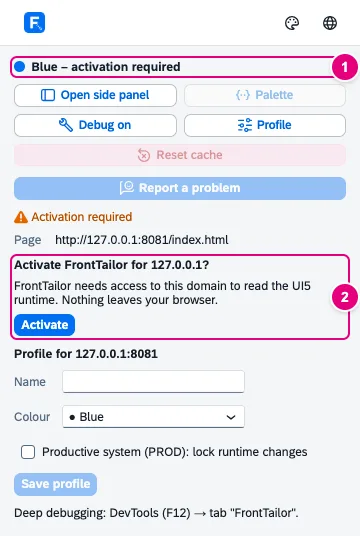
- The traffic light shows Blue – activation required.
- The question “Activate FrontTailor for <host>?” with the explanation and the Activate button.
- Click the FrontTailor icon in the app. The popup opens.
- Click Activate.
- Confirm the browser’s dialog. The grant applies to the host with all ports, so the question names the host without the port.
- FrontTailor connects without a reload. The icon turns green and shows UI5 or the short name of your host profile.
If you see “This domain is not allowed by your administrator.” instead of the question, a company policy does not allow FrontTailor on this host. You can revoke a grant at any time under chrome://extensions or edge://extensions.
The popup
A click on the icon opens the popup. It shows at a glance whether FrontTailor is connected to the app and offers the most common actions.
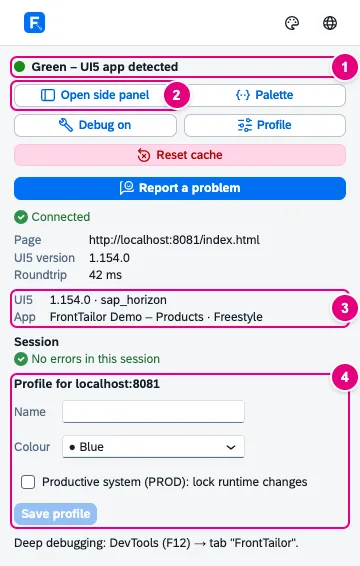
- The traffic light: grey without UI5, green for a detected app, yellow for errors in this session, red on PROD, blue while the grant is missing.
- Open side panel and the other quick actions: Palette, Debug on, Profile (URL profiles) and Reset cache. Below, Report a problem starts a bug report (Report a problem).
- The short system info: UI5 version, theme and app with its type. The full system info is in the Overview tab (Overview & system info).
- The profile for the host: name, colour and PROD flag – see Host profiles and PROD.
The side panel
The side panel sits to the right of the app and stays open while you click in the app. Open it with Open side panel in the popup or with Alt+Shift+F; the shortcut also starts the inspector’s pick mode.
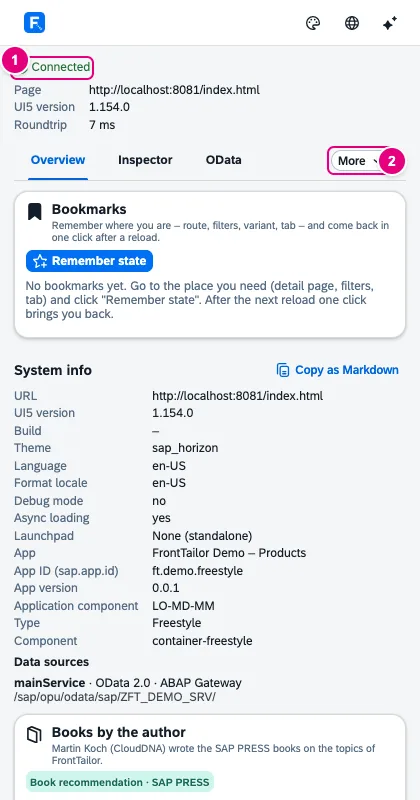
- The connection status with page, UI5 version and roundtrip.
- More opens the tabs that don’t fit into the bar.
The side panel is built for 420 pixels. Some views exist only in the wide DevTools panel, such as the Models tab; the OData console hides the time and size columns in the side panel.
The DevTools panel
For in-depth work, open DevTools (F12) and choose the FrontTailor tab. The panel belongs to the browser tab in which you opened DevTools.

- Connected appears only after a successful ping into the UI5 page; after that the panel checks every 5 seconds.
- The theme: follow browser, light or dark (SAP Horizon).
- The interface language: follow browser, German or English.
Status and traffic light
| What you see | Meaning |
|---|---|
| Connecting… / Starting… | FrontTailor is connecting to the app. |
| Connected | All set. The icon is green and shows UI5 or the profile’s short name. |
| Activation required | The domain is not granted yet, the icon shows ! – see above. |
| No UI5 app detected | No UI5 runs on the page. The icon stays grey. |
| Yellow with a number | Errors in the UI5 log or failed requests since the page loaded (from 100 it shows 99+). |
| Red | The host is marked as PROD; runtime changes are locked. |
What to do when it doesn’t work: Troubleshooting.
Settings
The basic settings sit at the top right of every surface: the theme (palette icon) and the language (globe). FrontTailor remembers both in the browser profile. Everything else is in the Tools tab (Tools), including the Licence card (Licence and editions).
| Shortcut | Effect |
|---|---|
| Alt+Shift+F | Inspector pick mode, opens the side panel |
| Alt+Shift+K | Command palette (Command palette) |
| Alt+Shift+R | Report a problem (Report a problem) |
You change the shortcuts under chrome://extensions/shortcuts.
See also
- Help from people FrontTailor onboarding for your team
- Docs Overview & system info
- Docs Host profiles and PROD
- Docs Troubleshooting
- Sources Manifest1 · ADR-0012 · ADR-0033