Host profiles and PROD
A host profile gives a system a name and a colour – DEV green, QAS orange, PRD red. More important is the PROD flag: on a PROD host FrontTailor refuses every runtime change, in the panel and in the extension’s background.
- Edition
- Community
- Where
- popup › “Profile for <host>”
- Applies to
- one host with port
- Name
- 1–24 characters, short name on the icon
- On PROD
- reading allowed, changes locked
Create a profile
You create the profile in the popup, on a page of the system. It applies to exactly this host with its port: s4d.example.com:44300 and s4d.example.com are two profiles.
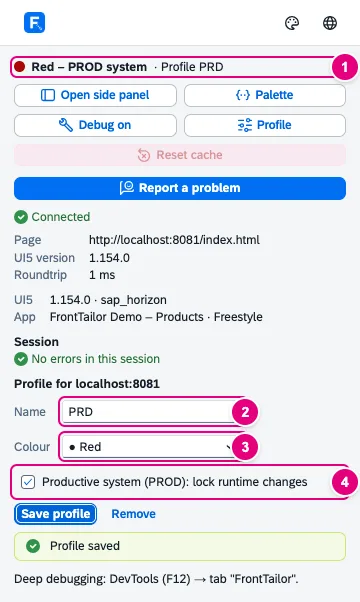
- The traffic light shows Red – PROD system and the profile’s name.
- Name: 1 to 24 characters. The first four characters appear as the short name on the icon.
- Colour: Blue, Green, Orange, Red, Purple or Grey.
- Productive system (PROD): lock runtime changes.
- Open the app on the system and click the FrontTailor icon.
- Under Profile for <host>, enter a Name, for example
PRD. - Choose a Colour.
- Tick Productive system (PROD): lock runtime changes.
- Click Save profile. “Profile saved” appears, and the lock applies right away, without a reload.
Remove deletes the profile again. Profiles live only locally in the browser profile. With from Team you share them with all colleagues as a team package (Team packages); system compare and the release check work with your host profiles, too.
What the traffic light shows
| Icon | Meaning |
|---|---|
| Grey | No UI5 app in the tab. |
| Blue with ! | UI5 detected, domain not granted yet (grant). |
| Green with UI5 or short name | Connected, no errors. |
| Yellow with a number | Errors in the UI5 log or failed requests (status 400 or higher) in this session. A session is one loaded document; navigation via the hash stays in the same session. |
| Red with short name or PROD | The host is marked as PROD. |
Red wins over yellow: on PROD you see the errors in the popup and in the Overview tab, the icon stays red.
What is locked on PROD
On a PROD host everything that only reads stays allowed: inspector, models, OData console, system info, copying and exports. All runtime changes are locked:
| Feature | On PROD |
|---|---|
| Changing properties in the inspector (live edit) | locked, editors greyed out |
| Replay in the OData console | locked |
| Cache reset | locked |
| Resetting personalization (flex) | locked |
| UI5 version override | locked |
| Switching the language in the running app | locked |
| Fault simulation from Pro | locked |
| Local code from Pro | locked |
| Recorded steps in the synthetic check and the morning check from Enterprise | not replayed |
| Deep profile of the performance profiler from Pro | does not start |
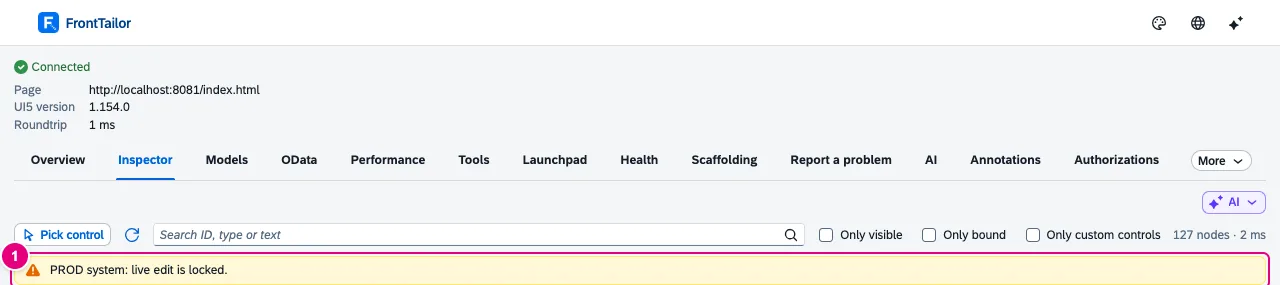
- The note “PROD system: live edit is locked.” appears without a reload as soon as the profile is saved.
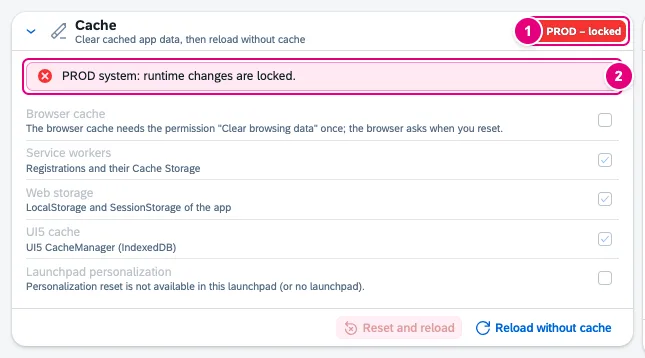
- The tag PROD – locked in the card’s header.
- The note “PROD system: runtime changes are locked.”
PROD by policy
Administrators define PROD hosts centrally with the prodHosts policy (patterns such as *.prod.example.com, see Enterprise deployment). On such hosts the PROD box in the popup is ticked and locked, with “Marked as PROD by your administrator.” below it. You can still choose name and colour yourself.
See also
- Docs Getting started
- Docs Team packages
- Docs Enterprise deployment
- Sources ADR-0031 · ADR-0042 · ADR-0133