Fiori Guidelines
Is the floorplan right? Is there more than one emphasized action? Does the table show its count? Instead of ticking that off by hand in a design review, FrontTailor reads the control tree of the open view, detects the floorplan and checks it against the SAP Fiori® design guidelines – with score, reason, improvement, code example and a link to the matching guideline.
- Edition
- from Pro
- Tab
- “Fiori Guidelines”
- Categories
- Actions, Header & title, Tables & lists, Forms, Messages, Navigation, Visual, Floorplan
- Surfaces
- DevTools panel and side panel
- On PROD
- allowed, the check only reads
How the validator works
In DevTools (F12) open the FrontTailor panel or the side panel and choose the Fiori Guidelines tab. On opening, the tab only fetches the page’s last report; the analysis runs after your click. What counts is what is visible: the controls of the open view with class, position, properties, labels and columns. The check makes no request; exports are created locally.
The UI5 Support Assistant checks technical rules. The validator checks the design guidelines: floorplan, placement and order of actions, titles, tables, forms, messages, navigation and visuals.
Check a view
- Open the view you want to check in the app – the detail page of an object, for example. Open dialogs or tabs that should be included.
- Choose the Fiori Guidelines tab in the panel and click Check view.
- Read score and detected floorplan, then the Score per category and the Improvements.
- After a change or in another view, click Check again.
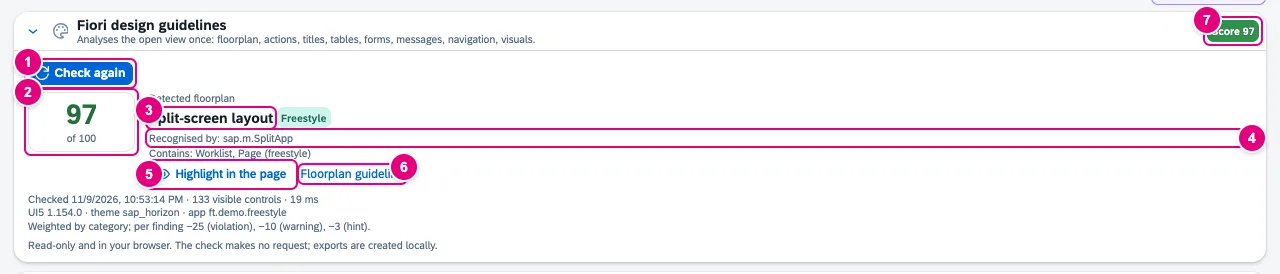
- Check view, after the first run Check again.
- The score from 0 to 100: green from 90, orange from 70, red below.
- The detected floorplan with technology: Freestyle, Fiori elements (OData V4) or Fiori elements (OData V2).
- Recognised by: the evidence, below it Contains: the parts, e.g. the columns of a layout.
- Highlight in the page frames the root control of the floorplan.
- Floorplan guideline opens the page in the SAP Fiori design guidelines.
- The score again in the card header.
The command palette (Alt+Shift+K, on a Mac ⌥+Shift+K) starts the check too, with the command Check Fiori design guidelines. In the launchpad only the app is checked, not the shell.
Floorplan detection
FrontTailor detects the floorplan in this order and names its evidence:
| Detection | Result |
|---|---|
sap.f.FlexibleColumnLayout visible | Flexible column layout, the columns as parts |
| Component is a Fiori elements template | List report (with filter bar), worklist (without filter bar), analytical list page (with chart), object page, overview page |
sap.m.Wizard visible | Wizard |
sap.m.SplitContainer or SplitApp | Split-screen layout, master and detail as parts |
| largest top-level page by content | Object page, list report, worklist, initial page (exactly one input field, no form), otherwise dynamic page (freestyle) or page (freestyle) |
Score per category

- A category with score, progress bar, “5 checked · 1 findings”.
- not applicable: the view had nothing to check; the category does not count towards the score.
Per category: 100 minus 25 per violation, 10 per warning and 3 per hint, at least 0. Identical findings (same rule, same control, e.g. clones of a list template) count once. The total score is the weighted, rounded mean of the categories with a score. The Check manually checklist does not count.
| Category | Weight |
|---|---|
| Actions | 20 |
| Header & title · Tables & lists | 15 each |
| Forms · Messages · Navigation · Visual · Floorplan | 10 each |
Improvements
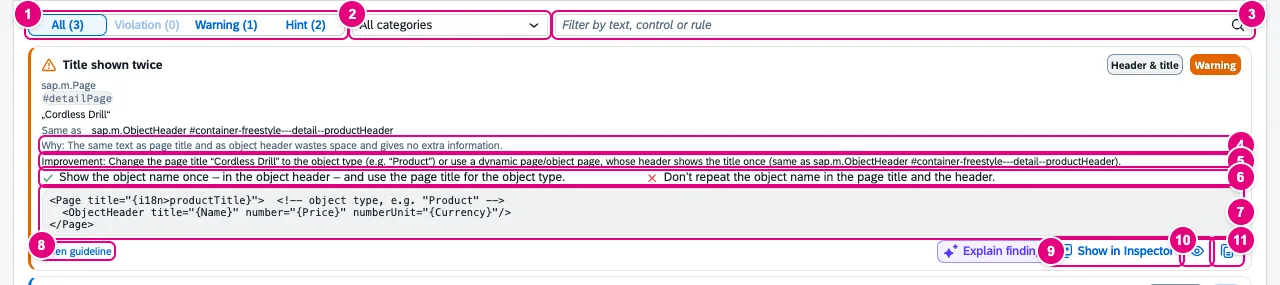
- Severity filter: All, Violation, Warning, Hint.
- All categories or one category.
- Filter by text, control or rule.
- Why the guideline asks for it.
- Improvement with the values from your app.
- Do and Don’t for this rule.
- Example as an XML view snippet.
- Open guideline: the rule’s page in the SAP Fiori design guidelines.
- Show in Inspector selects the control in the Inspector.
- Highlight in the page frames the control for four seconds.
- Copy as Markdown takes the finding along, e.g. for a ticket.
If the control comes from a Fiori elements template, the finding says “Fiori elements: change the annotations or the manifest, not the generated controls.” instead of showing an XML example. For findings about labels and tooltips, Check in the Quality tab leads to the i18n and accessibility check.
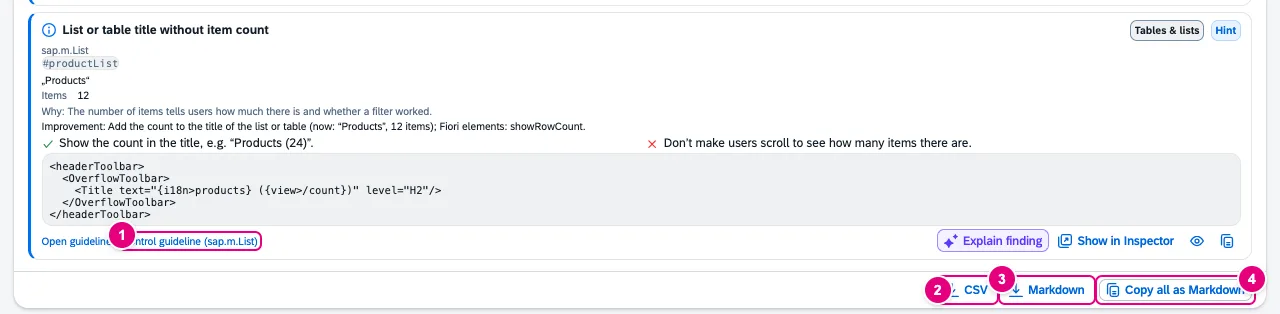
- Control guideline: the guideline page of the control class, if it differs from the rule’s page.
- CSV: UTF-8 with BOM and CRLF, protected against formulas.
- Markdown: report as a file.
- Copy all as Markdown: the same report to the clipboard.
With the AI bar and your own key there is Review floorplan in the check’s header and Explain finding on every finding. Nothing is sent before preview and click.
The rules
The validator only checks rules that can be read reliably at runtime. It does not check texts linguistically (verbs, tone, terminology).
| Category | Rule | Severity |
|---|---|---|
| Actions | More than one emphasized button in one area | Violation |
| Actions | Emphasized and semantic buttons mixed | Warning |
| Actions | Footer actions not right-aligned | Warning |
| Actions | Footer actions in the wrong order | Warning |
| Actions | Finalizing action outside the footer | Hint |
| Actions | Icon-only button without tooltip | Warning |
| Actions | Button text in capitals | Warning |
| Actions | Long button text | Hint |
| Header & title | Page without title | Violation |
| Header & title | Title shown twice | Warning |
| Header & title | Object header without key facts | Hint |
| Tables & lists | List or table title without item count | Hint |
| Tables & lists | List or table without own “no data” text | Hint |
| Tables & lists | Long list without growing | Hint |
| Tables & lists | Responsive table without pop-in | Warning |
| Tables & lists | Many columns | Hint |
| Forms | Input field without label | Warning |
| Forms | Form with outdated layout | Warning |
| Forms | Many fields without groups | Hint |
| Messages | Several messages without message popover | Warning |
| Navigation | Own back button in the launchpad | Warning |
| Navigation | Custom back button | Warning |
| Visual | Cozy density on a desktop | Warning |
| Visual | Image instead of SAP icon | Hint |
| Visual | Fixed colour instead of theme colour | Hint |
| Visual | Outdated theme | Hint |
| Floorplan | List report without variant management | Warning |
| Floorplan | Table without personalization | Hint |
| Floorplan | Object page without anchor bar | Hint |
| Floorplan | Edit mode without footer toolbar | Warning |
| Floorplan | Split-screen layout | Hint |
| Floorplan | Full-screen list in sap.m.Page | Hint |
Dos & don’ts and “Check manually”
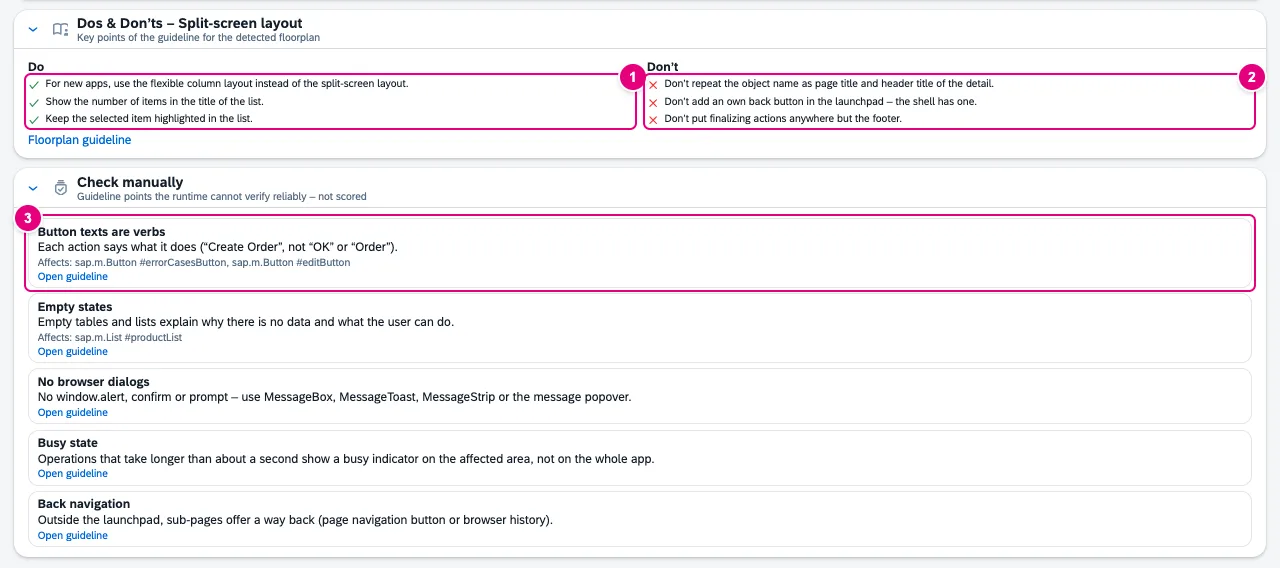
- Do: three points of the guideline for the detected floorplan, otherwise general ones.
- Don’t.
- An item of the Check manually checklist with the affected controls and Open guideline.
| Checklist item | Appears when … |
|---|---|
| Confirm destructive actions | buttons to delete, remove or discard are visible |
| Button texts are verbs | text buttons are visible |
| Required fields and validation | editable fields are visible |
| Empty states | lists or tables are visible |
| No browser dialogs | always |
| Busy state | always |
| Back navigation | outside the launchpad |
Typical problems
| Problem | Cause and fix |
|---|---|
| A dialog or tab is missing from the report | Only what is visible counts. Closed dialogs, other tabs of an IconTabBar and unrendered sections are missing. Open them, Check again. |
| Unknown layout or Page (freestyle) | No known floorplan detected. The rules still run; the dos & don’ts are then general. |
| Hardly any findings in a Fiori elements app | Many rules apply only to your own controls. For template controls the finding points to annotations or the manifest. |
| Large view: only the first controls or findings are listed. | At most 6,000 controls are rated; at most 500 findings are shown. |
| The control is no longer in the page. Check again. | The app re-rendered or navigated. Check again. |
The rules have been tried on FrontTailor’s three demo apps. A score does not replace a design review, but it quickly shows where one pays off.
See also
- Features at a glance Features · Quality
- Further reading SAP Fiori Elements – Development and Extensibility (SAP PRESS)
- Further reading SAPUI5 – The Comprehensive Guide (SAP PRESS)
- Help from people Fiori elements and annotations
- Docs Quality: i18n & accessibility
- Docs Inspector
- Docs Annotations
- Docs AI assistant
- Sources ADR-0351