Overview & system info
The “Overview” tab is the first thing FrontTailor shows: the connection status, the app’s system info, the errors of the current session and the bookmarks. Everything is read from the running app, with no setup and no request to the backend.
- Edition
- Community
- Tab
- “Overview” (default tab)
- Surfaces
- DevTools panel and side panel
- Copy
- system info as Markdown
- On PROD
- read only, no lock needed
The tab at a glance
Open the FrontTailor panel in DevTools (F12) or the side panel via the extension icon. Both start in the Overview tab. At the top you see whether FrontTailor is connected to the app, below that the module tabs and the cards of the overview.
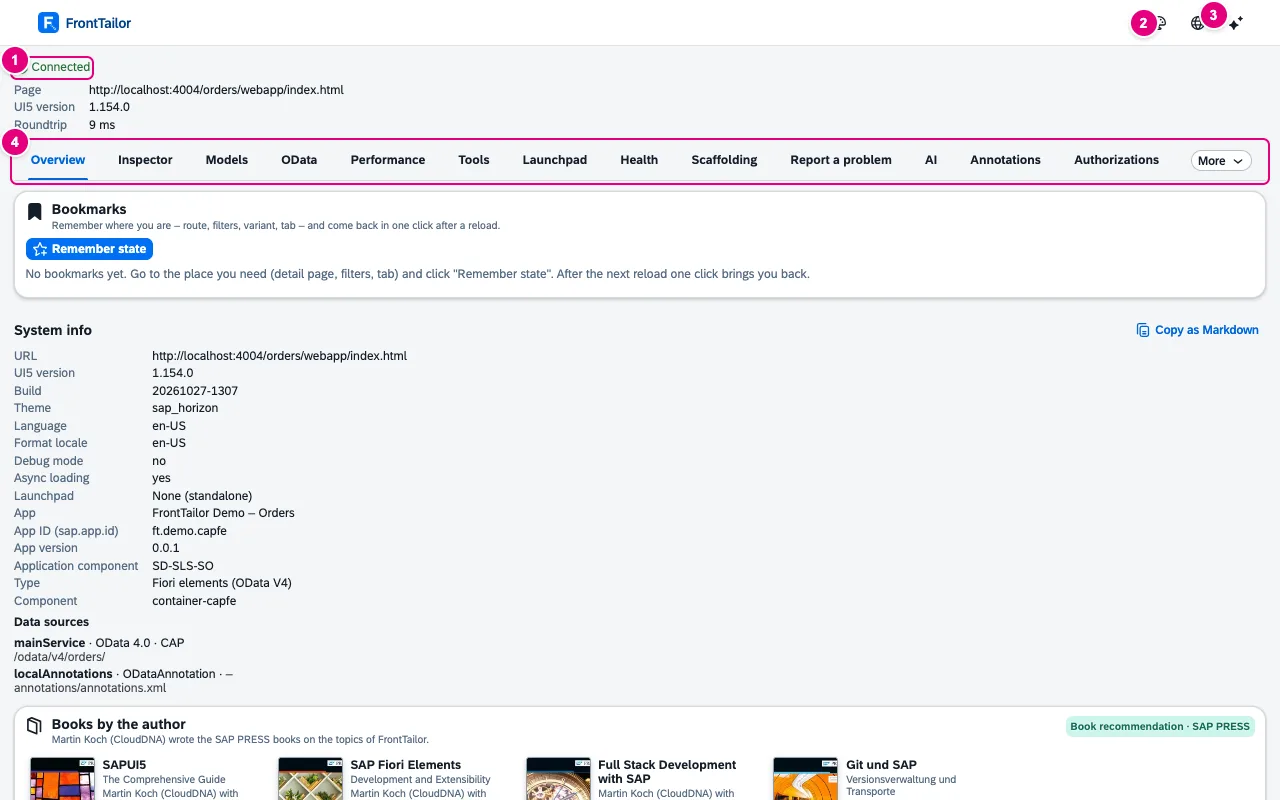
- Connection status: Connected, below it the page, UI5 version and the roundtrip to the app. If several frames are connected, Connected frames appears as well.
- Switch theme: follow browser, light or dark.
- Switch language: browser, German or English. The choice also applies to the palette and the extension’s hints.
- The module tabs. Whatever does not fit is under More.
Below the tab strip follow the App state bookmarks card, the system info, the Books by the author card and the session with its latest errors.
Connection status
| Status | Meaning |
|---|---|
| Connecting… · Starting… | FrontTailor is looking for the UI5 runtime in the page. This takes until the app has started. |
| Connected | The app is detected, all tabs work. |
| No UI5 app detected | The page has not loaded UI5, for example a logon page. |
| Activation required | FrontTailor may not read this domain yet. A click on Activate asks the browser for access – see Getting started. |
| Not connected · Error | The connection broke, usually after a reload. Retry sets it up again. |
| No tab selected | The side panel belongs to no tab with a web page. |
System info
The system info answers the questions at the start of every bug hunt: which UI5 version, which theme, which launchpad, which app, which service?
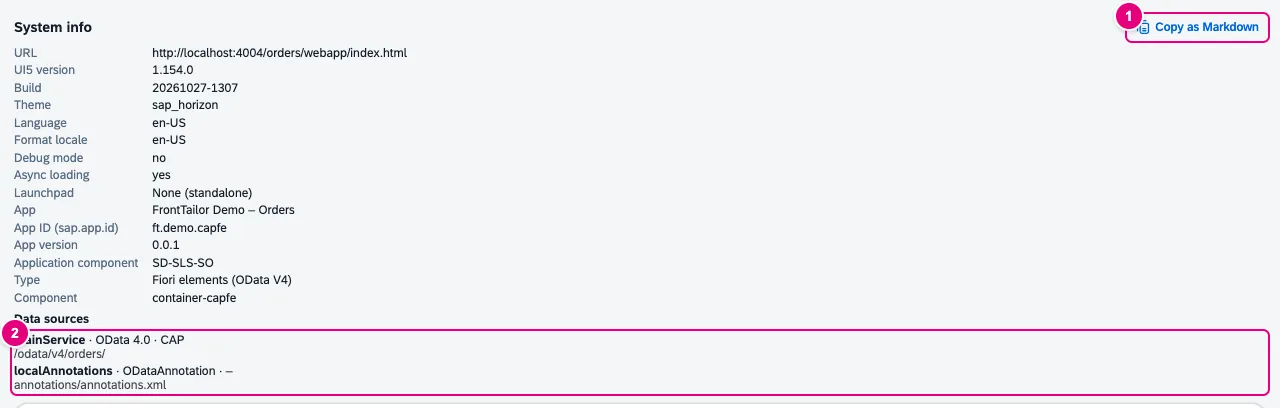
- Copy as Markdown puts the whole system info on the clipboard as Markdown – ready for a ticket or a chat.
- Data sources from the manifest: name, OData version, detected backend type and URI.
| Field | Content |
|---|---|
| URL | Address of the page. |
| UI5 version · Build | Version of the loaded UI5 runtime and its build timestamp. |
| Theme · Language · Format locale | Active theme, language of the texts and locale for number and date formats. |
| Debug mode · Async loading | Whether sap-ui-debug is on and whether UI5 loads modules asynchronously. |
| Launchpad | None (standalone), ABAP Fiori launchpad (with client), SAP Build Work Zone, Local sandbox or Unknown launchpad. Inside a launchpad the launchpad home page is listed, too. |
| App · App ID (sap.app.id) · App version | Title, ID and version of the app from the manifest. |
| Application component | The SAP component for incidents, e.g. SD-SLS-SO. |
| Type | Freestyle, Fiori elements (OData V2) or Fiori elements (OData V4). |
| Component | ID of the app’s component. |
| Data sources | OData services and annotation files. The backend type is ABAP Gateway, ABAP RAP, CAP or Other. |
| Loaded libraries | The UI5 libraries the app has loaded. |
- Open the app in the browser and wait until the panel says Connected.
- In the Overview tab, click Copy as Markdown on the system info.
- Paste the text into the ticket. It holds every field of the system info, including the data sources.
The system info shows when it was read (Collected …). When the launchpad navigates to another app, FrontTailor reads it again.
Session: errors since loading
The Session card counts the errors since the page was loaded: errors from the UI5 log and requests that ended with status 400 or higher. Below it are the latest errors with their source (UI5 log or Request). Without errors it says No errors in this session.

- The number of errors in this session; the same number shows in yellow on the extension icon.
A session is one loaded document in the tab. Hash navigation (launchpad, the app’s router) stays in the same session, a reload starts a new one. A $batch that answers HTTP 200 and only carries errors inside does not count here – the OData console shows those. Of request URLs, the session keeps only scheme, host and path.
The icon as a traffic light
The extension icon in the browser toolbar shows the tab’s state even when no panel is open.
| Colour | Meaning |
|---|---|
| Grey | No UI5 app in the tab. |
| Green | UI5 app detected, no errors. |
| Yellow with number | Errors in this session (from 100 on it says “99+”). The tooltip reads “… errors in this session”. |
| Red | The host is marked as PROD. Tooltip: “PROD – changes locked”. |
| “!” on blue | The domain still needs to be activated. |
How a host becomes PROD is explained under Host profiles and PROD.
Bookmarks and books
At the very top of the tab is the Bookmarks card: Remember state stores the app’s route, filters and tab, and after a reload one click takes you back. All about it under App state bookmarks.
The Books by the author card shows the SAP PRESS books on FrontTailor’s topics. Hide recommendations switches it off; under Tools › About FrontTailor it comes back.
Shortcuts
| Key | Effect |
|---|---|
| F12 → “FrontTailor” tab | The DevTools panel with all tabs. The side panel points to it with “Deep debugging: DevTools (F12) → tab "FrontTailor".” |
| Alt+Shift+F | Pick a control in the page, see Inspector. |
| Alt+Shift+K | Command palette in the app, see Command palette. |
Typical problems
| Problem | Solution |
|---|---|
| The panel says Activation required | Click Activate and grant the domain in the browser, see Getting started. |
| The panel says No UI5 app detected | The page is not (yet) a UI5 app, for example the logon. Once the app has started, FrontTailor connects by itself. |
| The icon is yellow although the app runs | Yellow means: errors in this session. The Session card shows which. A reload resets the number. |
| Data sources are missing in the system info | The app declares no dataSources in its manifest, or it creates its model in code. The OData console still shows the requests. |
| Wrong system info in the launchpad | The system info belongs to the app currently shown. After a navigation, wait a moment until it is read again. |
See also
- Features at a glance Features · Inspector & Models
- Further reading SAPUI5 – The Comprehensive Guide (SAP PRESS)
- Further reading SAP Fiori Elements – Development and Extensibility (SAP PRESS)
- Help from people FrontTailor onboarding for your team
- Docs Getting started
- Docs Host profiles and PROD
- Docs App state bookmarks
- Docs OData console
- Sources ADR-0031 · ADR-0041