Command palette
The command palette brings FrontTailor’s tools into the app itself: press Alt+Shift+K, type a few letters, Enter. No DevTools, no mouse. Pin frequent commands as favourites.
- Edition
- Community
- Shortcut
- Alt+Shift+K (changeable)
- Place
- in the app’s page, on top of everything
- Also via
- Tools › More tools › Command palette, popup “Palette”
- On PROD
- locked commands visible but disabled
Open the palette
The palette opens in the app’s page, not in the panel. There are three ways:
- Alt+Shift+K in the app (on a Mac ⌥⇧K).
- In the panel: Tools tab › More tools card › Command palette › Open.
- In the extension popup: Palette.

- Change shortcuts opens
chrome://extensions/shortcuts. The current shortcut is shown next to it. - Open shows the palette in the app.
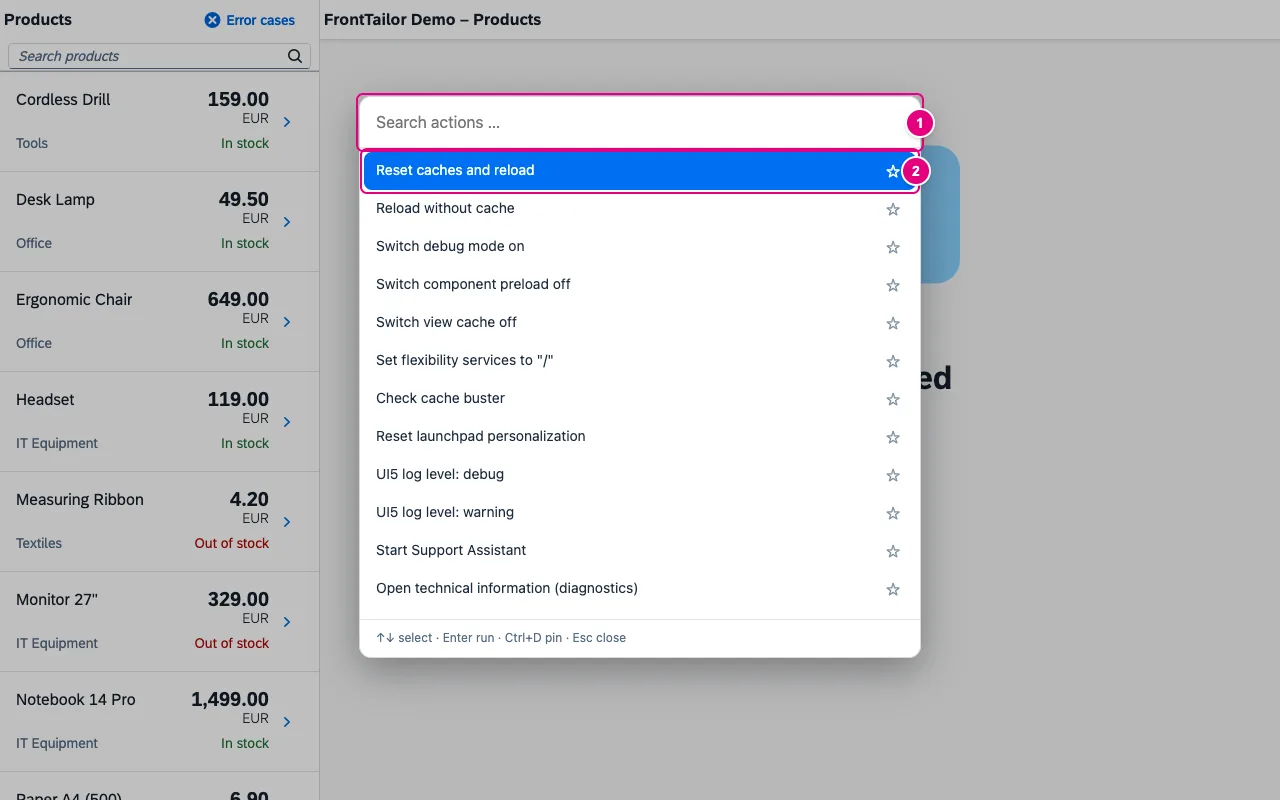
- Search actions …: typing filters right away.
- The selected action; the star on the right pins it.
Run a command
- Press Alt+Shift+K in the app.
- Type
debug. The search is fuzzy: word starts and contiguous matches come first. - Use ↑/↓ to select Switch debug mode on.
- Press Enter. The app reloads with
sap-ui-debug=true.
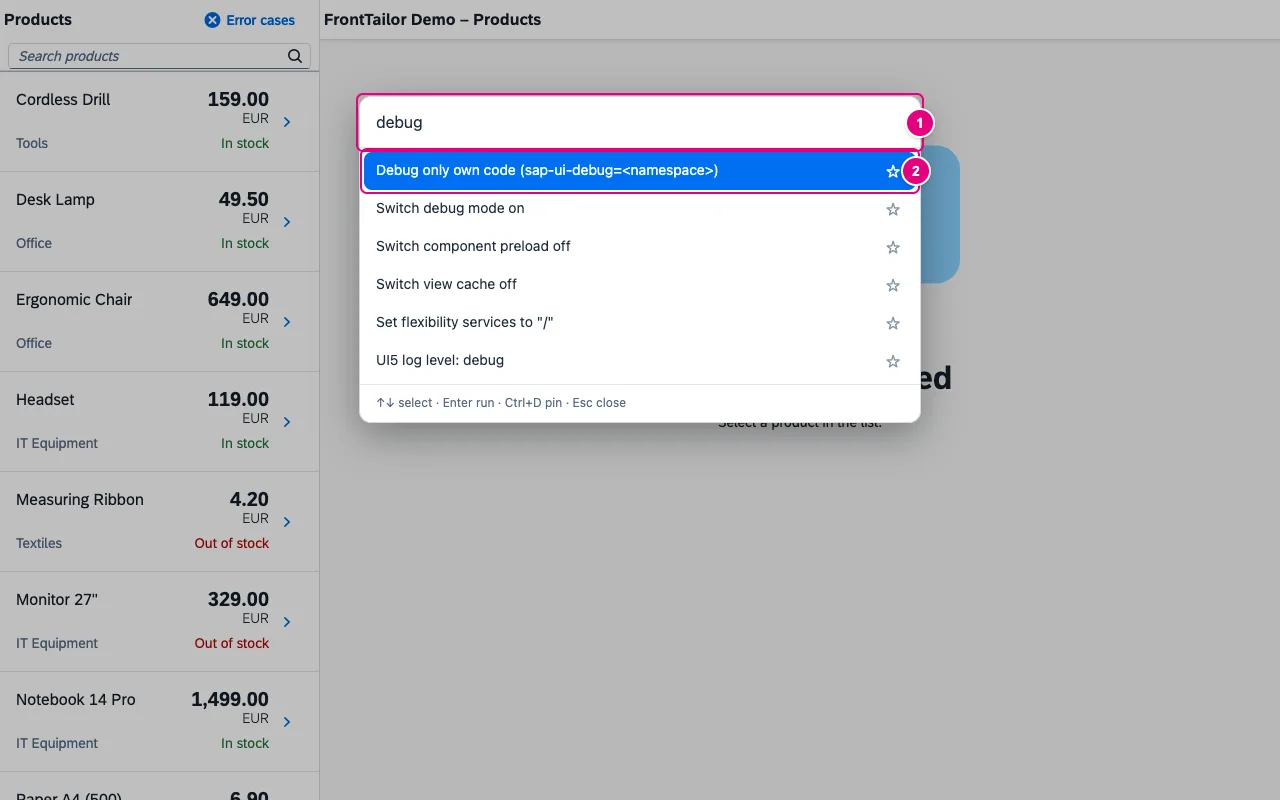
- The search term.
- The best match is selected; Enter runs it.
Commands that delete or reset something ask first: “Really run this?” – a second Enter runs it, Esc cancels. The extension’s background checks for itself anyway.
The commands
| Command | Effect |
|---|---|
| Reset caches and reload | Clear the app’s caches and reload; asks first, locked on PROD. |
| Reload without cache | Reload the page bypassing the browser cache. |
| Switch debug mode on · off | Set or remove sap-ui-debug. |
Debug only own code (sap-ui-debug=<namespace>) | Load only the app’s namespace unminified. |
| Remove all debug parameters | Take the debug parameters out of the URL. |
| Switch component preload off · Switch view cache off · Set flexibility services to "/" | Debug switches of the app, see Tools. |
| Check cache buster | Checks whether the loaded version matches the deploy. |
| Reset launchpad personalization | Asks first, locked on PROD. |
| UI5 log level: debug · warning | Change UI5’s log level. |
| Start Support Assistant | UI5’s rule check of the app. |
| Open technical information (diagnostics) | The UI5 diagnostics window. |
| Pick a control (pick mode) | Like Alt+Shift+F, see Inspector. |
| Open side panel | FrontTailor’s side panel. |
| Change keyboard shortcuts | Opens chrome://extensions/shortcuts. |
| Apply URL profile "…" | One per URL profile of your own, see Tools. |
| Remember state · Open bookmark: … | See App state bookmarks. |
Favourites and recently used
The star or Ctrl+D (Mac: Cmd+D) pins the selected command. Without a search term the palette then shows Favourites first, then the ten recently used commands, then All actions.
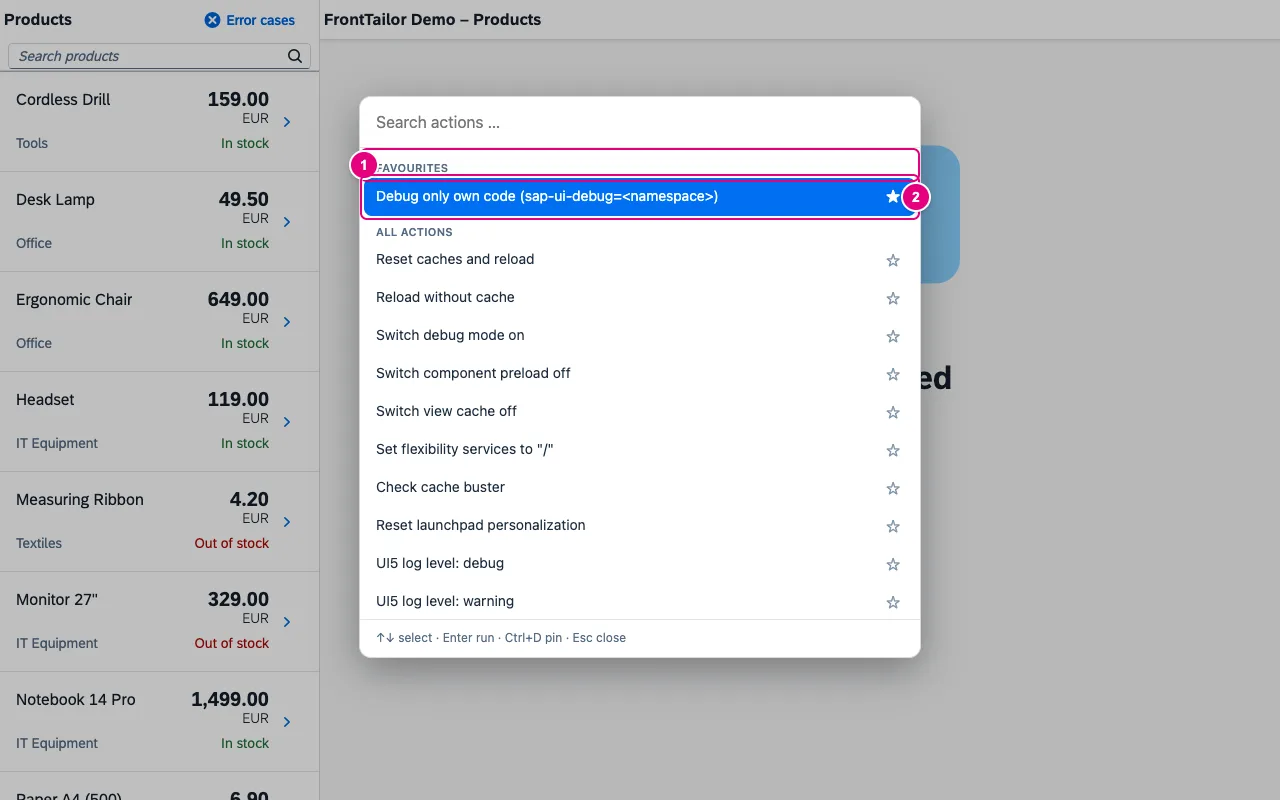
- The Favourites group.
- The pinned command with a filled star. Ctrl+D again unpins it.
In the Tools tab, the Palette favourites card shows your own favourites, team favourites and recently used commands; you can pin and unpin there, too. Favourites from team packages appear with from Team and carry the Team badge; those set by your administrator (Admin) cannot be unpinned.
Keys in the palette
| Key | Effect |
|---|---|
| ↑ ↓ | Select. |
| Enter | Run; when asked, a second time to confirm. |
| Ctrl+D | Pin or unpin. |
| Esc | Close or cancel the confirmation – without running anything. |
The palette only processes real key presses and passes no keys to the app. Change the Alt+Shift+K shortcut under chrome://extensions/shortcuts (Edge: edge://extensions/shortcuts).
Typical problems
| Problem | Solution |
|---|---|
| Alt+Shift+K does nothing | The shortcut is taken or not set (“No shortcut set” in the Tools tab). Assign it again under chrome://extensions/shortcuts, or start via Open in the Tools tab. |
| The palette needs a connected UI5 app in the tab. | The palette runs on detected UI5 pages only. Wait until the panel says Connected. |
| A command is grey | It is not available on this page or locked on PROD; the hint next to it says why. |
| Open side panel does not work | The browser requires a direct click for it. Open it via the extension icon then; the palette points this out. |
See also
- Features at a glance Features · Inspector & Models
- Further reading SAPUI5 – The Comprehensive Guide (SAP PRESS)
- Help from people Hands-on workshops on SAPUI5, Fiori elements, OData and CAP
- Docs Tools
- Docs App state bookmarks
- Docs Inspector
- Sources ADR-0081 · ADR-0291