Inspector
The inspector shows the control behind every pixel of a UI5 app: type, ID, view, properties, bindings, aggregations and events – live, while the app runs. It is free and part of the Community edition.
- Edition
- Community
- Tab
- “Inspector”
- Shortcut
- Alt+Shift+F
- Surfaces
- DevTools panel and side panel
- On PROD
- reading allowed, live edit locked
The tab at a glance
Open the FrontTailor panel in DevTools (F12), or the side panel from the extension icon, and choose the Inspector tab. The app’s control tree is on the left, the details of the selected control on the right. In the narrow side panel they are stacked.
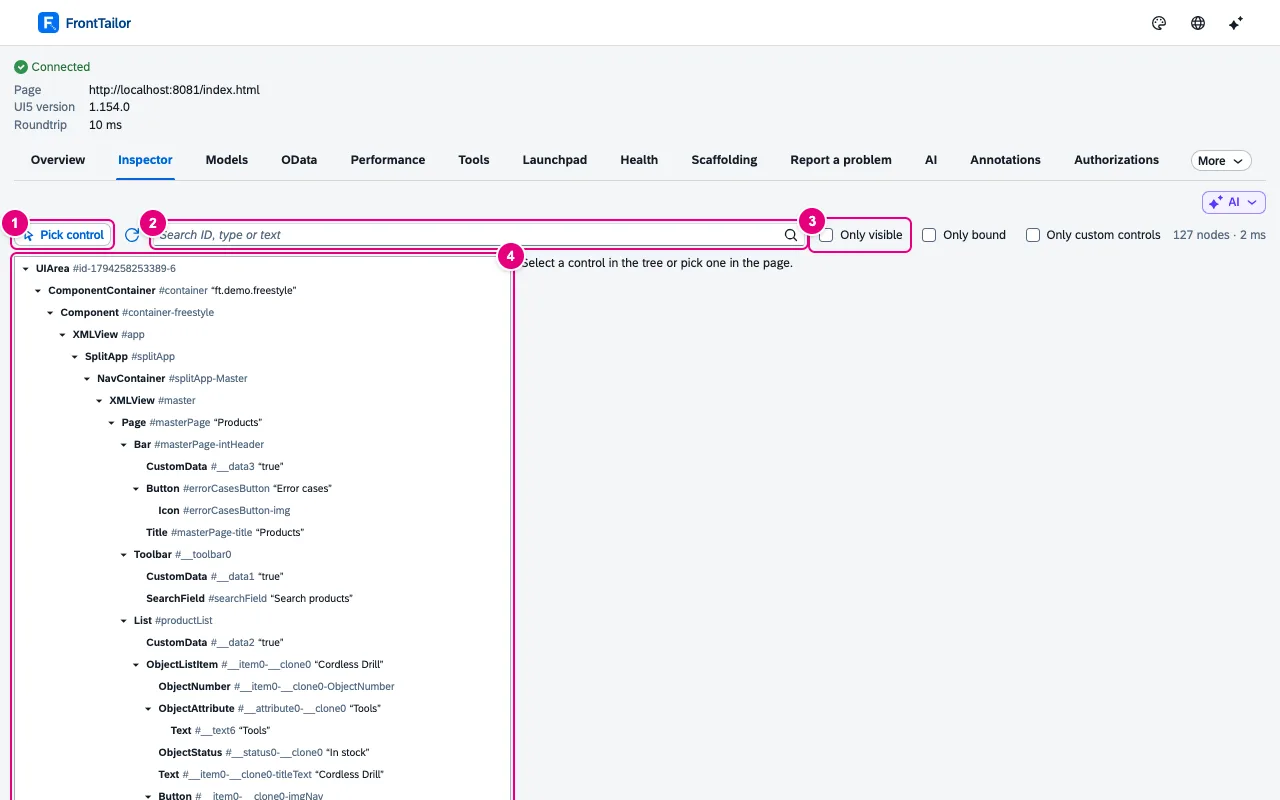
- Pick control starts pick mode: then click a control in the page. Next to it, Reload tree reads the tree again.
- Search ID, type or text – all three are searched. Matches keep their ancestors so you see where the control sits.
- Filters: Only visible, Only bound and Only custom controls (type not from
sap.*). To the right: the number of nodes and how long reading took. - The control tree: UI areas, components, views and controls in the app’s order. Arrow keys move the selection.
The tree follows the running app: when the app opens a dialog or loads more list items, the new controls appear by themselves. For very large apps the inspector shows up to 20,000 nodes; beyond that it says “Tree truncated: only the first … nodes are shown.”
Pick a control in the page
- Click Pick control or press Alt+Shift+F – the shortcut also works with DevTools closed and then opens the side panel.
- Move the mouse over the app. A frame shows the control under the pointer with type, ID and – if bound – the binding path.
- Click the control. The app does not see the click: no button fires, no popover closes. Esc cancels.
- The inspector jumps to the control in the tree and shows its details on the right.
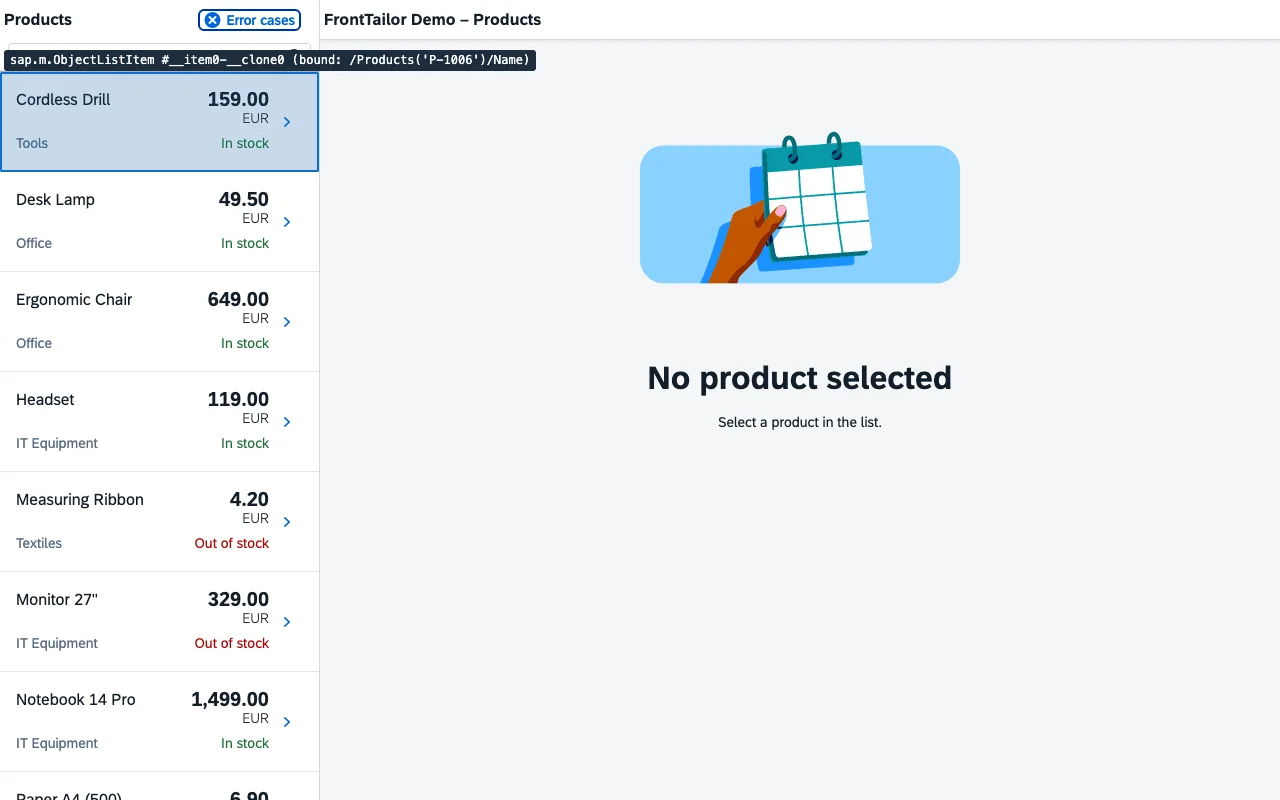
sap.m.ObjectListItem.This also works in dialogs, popovers and apps that run in an iframe inside the launchpad. A click in a frame switches the inspector to that frame; the Frame selector above the tree shows which one is meant (Top frame is the page itself).
Details of a control
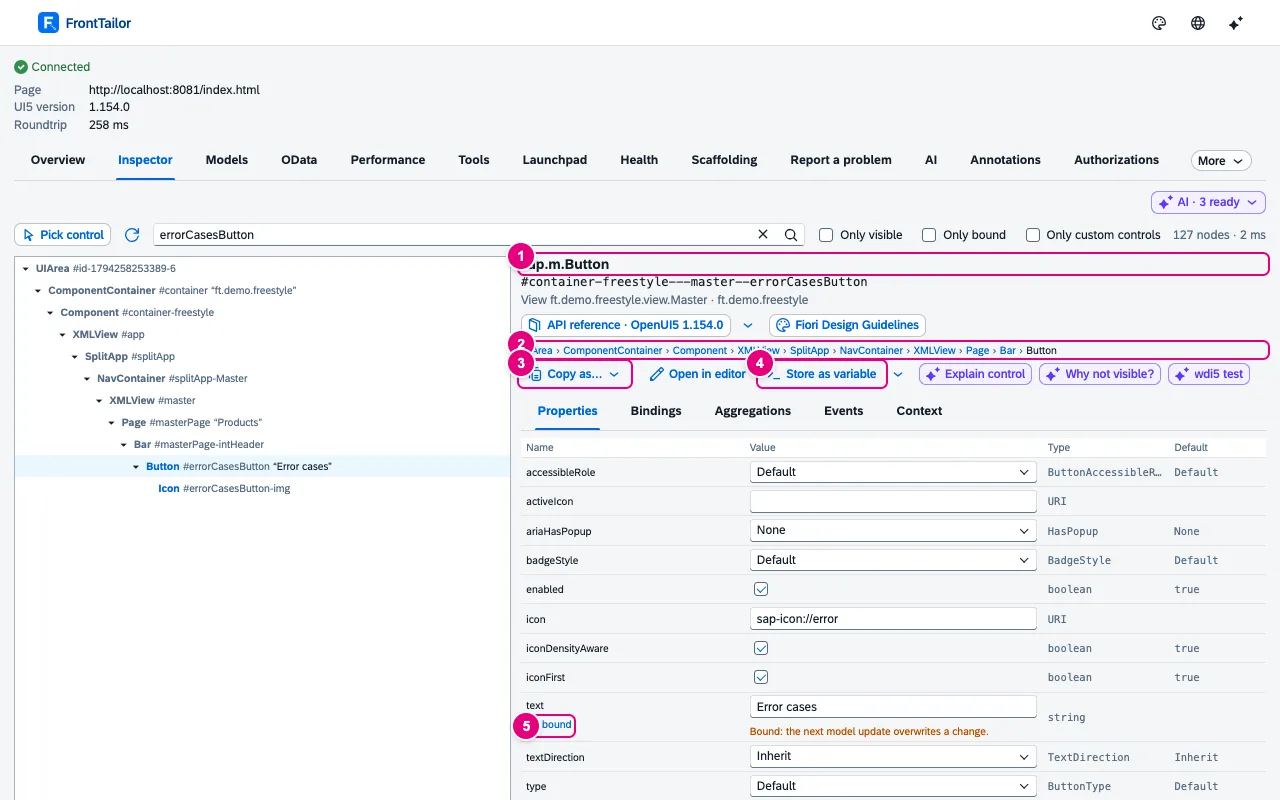
text property is bound to an i18n text.- Type and ID, below them view and component. Next to them, API reference opens the class in the UI5 documentation of exactly the version the app loads; Fiori Design Guidelines opens the matching guidelines page if there is one.
- Parent chain: every ancestor up to the UI area, clickable.
- Copy as… – ID, OPA5 selector, wdi5 selector, Playwright locator or XML snippet (see below).
- Store as variable hands the control to the DevTools console (see below).
- bound below a property name opens where the value comes from.
The details have five tabs:
| Tab | What you see |
|---|---|
| Properties | Name, value, type and default of every property, bound ones marked, own and inherited told apart. Values are editable (see live edit). |
| Bindings | For each bound property: path, model, Resolved path, mode, formatter and type; for composite and expression bindings every part. |
| Aggregations | Children per aggregation with count and IDs, plus the associations. |
| Events | Every event with its number of listeners and the handler names. |
| Context | Models and binding contexts the control sees, with Context path. |
Property, aggregation and event names in the tables link to their entry in the API reference of the class that declares them. If a control is not in the tree – say a dialog that was never opened – a note in the details explains why and names the root.
Where does the value come from? Reading bindings
- Select the control (pick or search).
- In the Properties tab, click bound below the property name.
- The Binding of … popover shows the path as written, Resolved path, model, Model type (OData V2, OData V4, JSON, Resource (i18n), XML), Value in the model, Current value, binding mode, type and formatter – for i18n texts key and text.
- Copy path takes the path with you, Show in Bindings tab highlights the row in the Bindings tab, Show in Model Explorer opens the Model explorer tab right at that spot.
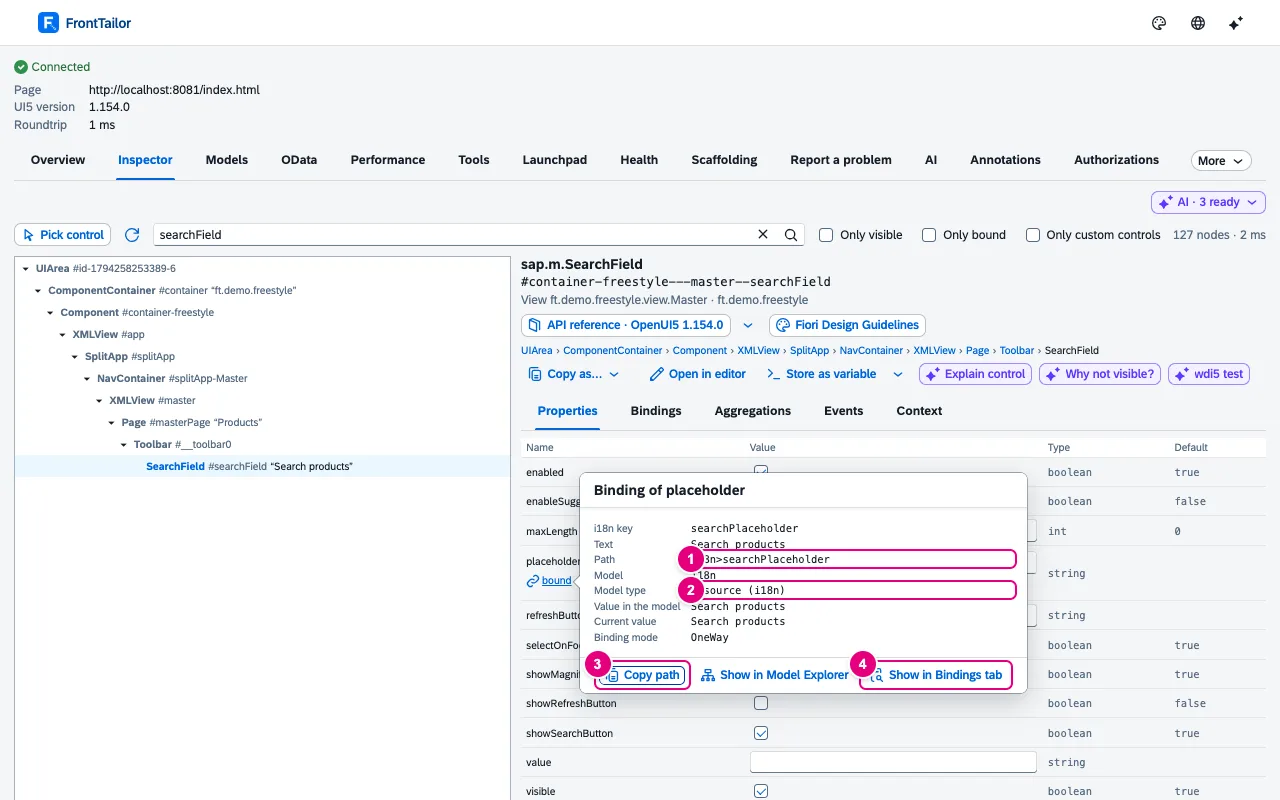
placeholder property: an i18n text, mode OneWay.- Path as written in the view.
- Model type – here a resource model with the i18n texts.
- Copy path.
- Show in Bindings tab.
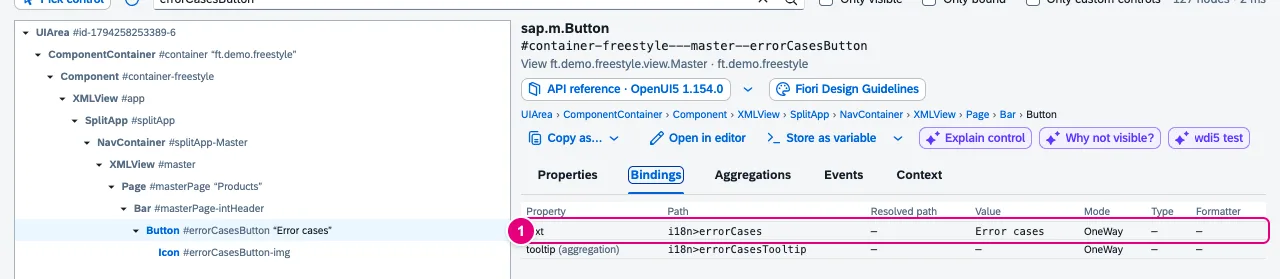
When a field stays empty, the tab usually tells you why: “not resolved” means the control has no model or context yet – typical for a relative path without an element binding.
Edit properties live
In the Properties tab every value is an editor: booleans as check boxes, enums as a select, numbers as a number field, everything else as a text field. Objects and arrays stay read-only.
- Enter or leaving the field applies the value; Esc brings back the page’s value.
- The inspector checks the value against the data type. If it does not fit, you see “Invalid value: …” and the control keeps its value.
- For bound properties a note warns: “Bound: the next model update overwrites a change.” With TwoWay bindings the change is written to the model, too.
Copy selectors and XML
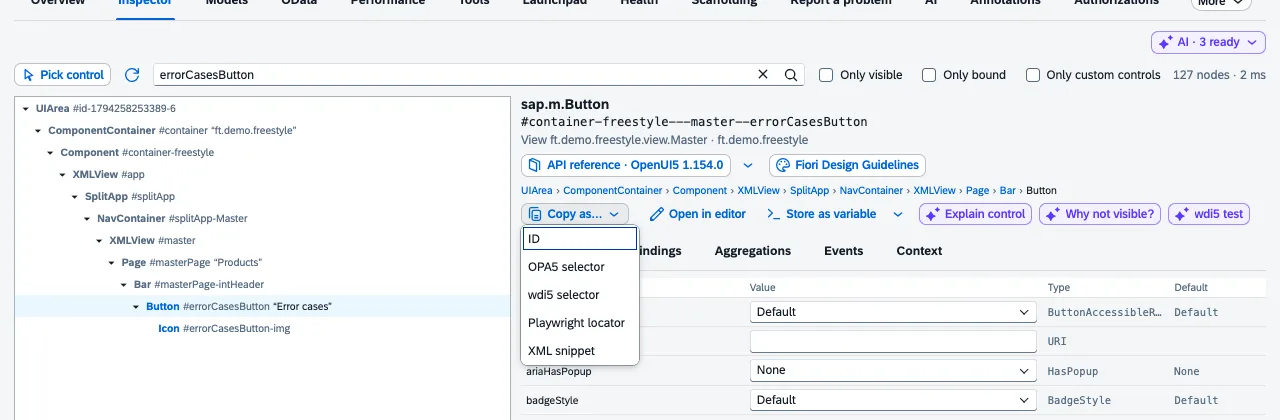
| Entry | Result |
|---|---|
| ID | the full control ID |
| OPA5 selector | this.waitFor({ id, viewName, controlType, … }) |
| wdi5 selector | browser.asControl({ selector: { … } }) |
| Playwright locator | a locator on the end of the DOM ID, independent of the container prefix (for example in the launchpad) |
| XML snippet | the control as XML with namespace, ID, bindings and every value that differs from the default |
Generated IDs such as __button3 never end up in a selector. Instead the inspector uses the control type and a feature that makes the control unique: a text, an i18n key or a binding path. The automated tests run the selectors against the demo apps.
Store as variable (DevTools console)
- Select the control and click Store as variable.
- The inspector stores it as
$ft0(the next one as$ft1…, the latest always also as$ft) and shows an example call such as$ft0.getText(). - Switch to the DevTools console and use the variable. If the app runs in an iframe inside the launchpad, the inspector names the frame you have to pick at the top left of the console.
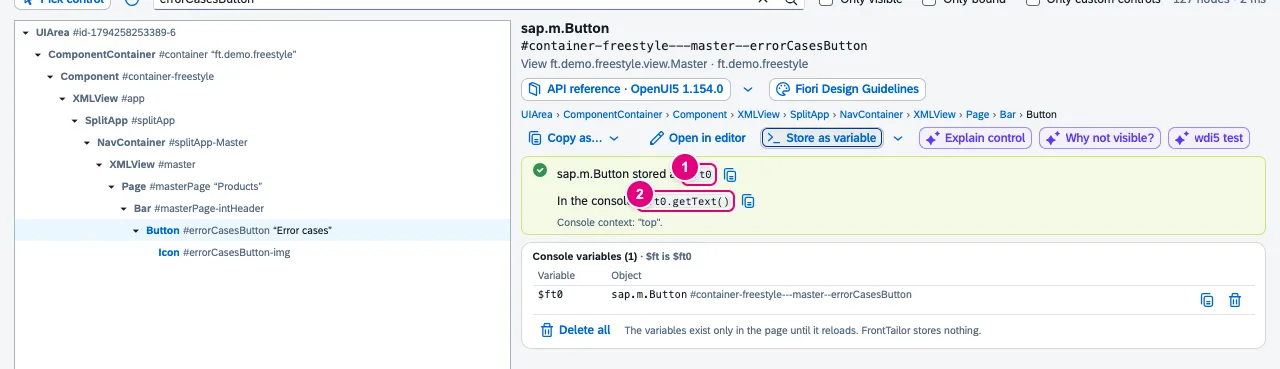
$ft0 – with an example call and the list of all variables of the frame.The menu next to it stores a binding context or a model instead of the control. The variables live in the page only until it reloads; FrontTailor stores none of it. Delete all clears them.
More actions in the details
- Open in editor jumps to the view’s source file in your local editor. Set up the path mapping once in Tools (namespace → local folder).
- Show in Elements panel selects the control’s DOM element in the DevTools Elements panel.
- With from Pro you also get the AI entries Explain control, Why not visible? and wdi5 test – with your own key, see AI assistant.
Typical problems
| What you see | Cause and fix |
|---|---|
| The tree stays empty | The page has not loaded UI5 (yet), or the host is not granted. The panel must say Connected at the top – see grant the domain. |
| “The selected control has no row in the tree” | The control hangs on no UI area, for example a closed dialog. The details are complete anyway; open the dialog in the app and select the control again. |
| “not rendered” in the details header | The control is hidden or not displayed yet, so it cannot be highlighted in the page. |
| Editors are greyed out | The host is marked as PROD. Live edit is locked there on purpose. |
See also
- Features at a glance Features · Inspector & Models
- Further reading SAPUI5 – The Comprehensive Guide (SAP PRESS)
- Help from people Hands-on workshops on SAPUI5, Fiori elements, OData and CAP
- Docs Model explorer
- Docs Tools
- Docs Host profiles and PROD
- Sources ADR-0051 · ADR-0102 · ADR-0393