Quality: i18n & accessibility
One click, and FrontTailor reads the running app once: which i18n keys are missing, which texts are hard-coded, where is a translation missing, which button has no accessible name, which text has too little contrast? Every finding names the control, rule, fix and the link to the UI5 and WCAG docs – and jumps to the Inspector on request.
- Edition
- from Pro
- Tab
- “Quality”
- Sections
- “Texts” and “Accessibility”
- Standard
- WCAG 2.2 AA and the UI5 accessibility guidelines
- Surfaces
- DevTools panel and side panel
- On PROD
- allowed, the check only reads
How the check works
In DevTools (F12) open the FrontTailor panel or the side panel and choose the Quality tab. Nothing runs in the page before your click. Then FrontTailor reads the app once: controls, bindings, resource bundles, labels and colours. Everything is evaluated in your browser.
Only what belongs to the app is checked: rendered controls owned by a component of the app. The launchpad shell, unrendered controls and library internals stay out. Controls from Fiori elements templates get their texts from annotations and are therefore not checked for hard-coded texts.
Run a check
- Open the app on the page you want to check, and the Quality tab in the panel.
- Click Run check. To compare the language files as well, click Load translations (de, en) instead.
- Read the total of errors, warnings and hints at the top, below it the Texts and Accessibility sections.
- After a fix, or on another page of the app, click Check again.

- Run check, after the first run Check again.
- Load translations (de, en): checks and also compares the language files.
- The total of errors, warnings and hints.
- Time, number of controls, bundles and contrast samples, duration; below it UI5 version, language and theme.
The command palette (Alt+Shift+K, on a Mac ⌥+Shift+K) starts the check too, with the command Run i18n and accessibility check. The page remembers the last report: after a run from the palette or a switch between DevTools and side panel, the tab shows it without checking again.
| Message | Meaning |
|---|---|
| “… controls come from Fiori elements templates …” | This many controls are exempt from the hard-coded text rule. |
| “… texts on images or gradients: contrast not computable.” | These texts have no plain background colour; the contrast check skips them. |
| “Large app: only the first findings or controls are listed.” | A report holds at most 1,500 findings, errors first. |
Section “Texts”
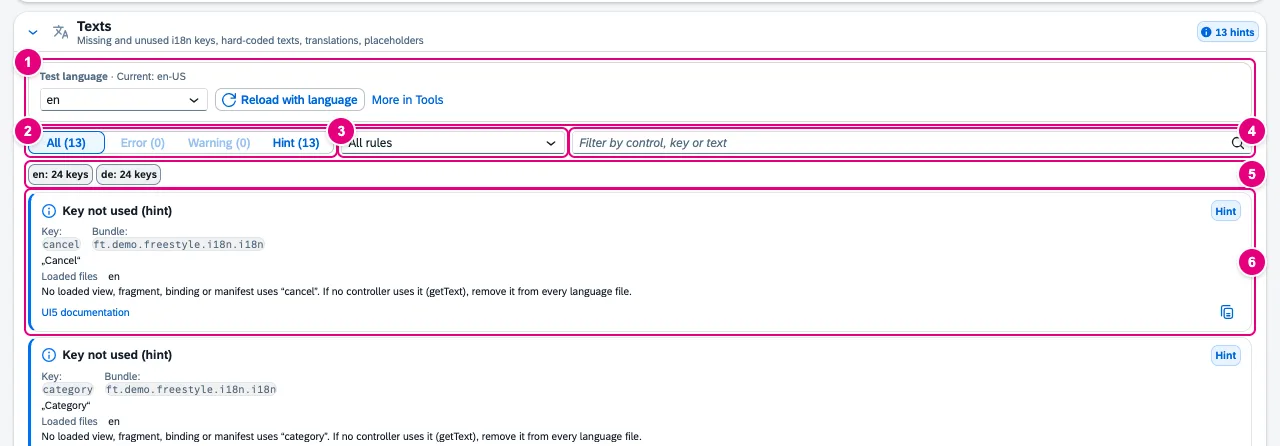
- Test language: reload the app in another language, then check again.
- Severity filter: All, Error, Warning, Hint, each with its count.
- Rule filter: All rules or one rule with its count.
- Filter by control, key or text.
- Status of each loaded language file: number of keys or file missing, not in supportedLocales, could not be loaded, other origin – not loaded.
- A finding with rule, key, bundle, text, loaded files and fix.
| Rule | Severity | When |
|---|---|---|
| i18n key missing | Error | A binding points to a key the bundle does not have. UI5 then shows the key itself. |
| Text shown from a fallback language | Warning | The key is missing in the file of the current language; UI5 shows the text from a fallback file. |
| Key not used (hint) | Hint | No loaded view, fragment, binding or manifest uses the key. |
| Hard-coded text | Warning | A text property is set to a fixed value instead of being bound to {i18n>…}. If the text comes from data, ignore the finding. |
| Translation missing | Warning | A key is missing in a loaded language file (only after Load translations). |
| Language file missing | Warning | A language is listed in supportedLocales, but its file does not exist. |
| Placeholders differ between languages | Error | A translation has other placeholders ({0}, {1} …) than the reference – values are lost or shown as {0}. |
Load translations (de, en) loads the language files of the app’s own resource bundles through UI5 – same origin only, read-only, at most ten bundles – and compares them with the default file. A language that is not in the supportedLocales is not requested but reported as not in supportedLocales.
Test a language
- Check the app once, so the Texts section appears.
- Choose the language under Test language. The current language is shown next to it.
- Click Reload with language. The app reloads with the URL parameter
sap-ui-language– bundles, Fiori elements texts and OData texts then come in the new language. - Click Run check in the Quality tab.
More in Tools opens the Language card in the Tools tab: with all languages of the app, the SAP test languages, RTL and switching without a reload.
Section “Accessibility”
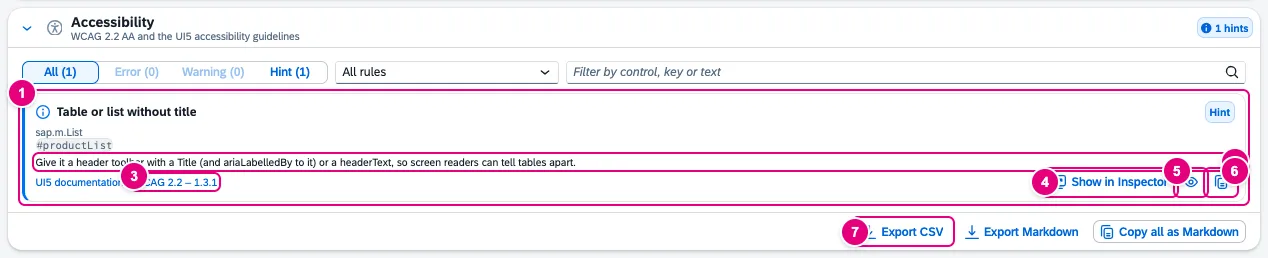
- The finding: rule, severity, control type and ID.
- The fix in one sentence.
- UI5 documentation and WCAG 2.2 – 1.3.1 open the matching pages.
- Show in Inspector selects the control in the Inspector.
- Highlight in the page frames the control for four seconds.
- Copy as Markdown takes the finding along, e.g. for a ticket.
- Export CSV, next to it Export Markdown and Copy all as Markdown.
| Rule | WCAG | Severity |
|---|---|---|
| Control without accessible name | 4.1.2 | Error |
| Icon button without tooltip | 4.1.2 | Warning |
| Image or icon without alternative text | 1.1.1 | Error for images, warning for icons |
| Clickable image marked decorative | 1.1.1 | Warning |
| Form field without label | 3.3.2 | Warning |
| Table or list without title | 1.3.1 | Warning for tables, hint for lists |
| Column without header | 1.3.1 | Error |
| ARIA reference points nowhere | 4.1.2 | Error |
| Focusable element in a hidden container | 4.1.2 | Error |
| Text contrast too low | 1.4.3 | Error |
For contrast, 4.5:1 applies, for large text (24 px or more, or 18.66 px bold) 3:1 – without rounding. Disabled elements are exempt; texts on images or gradients are skipped.
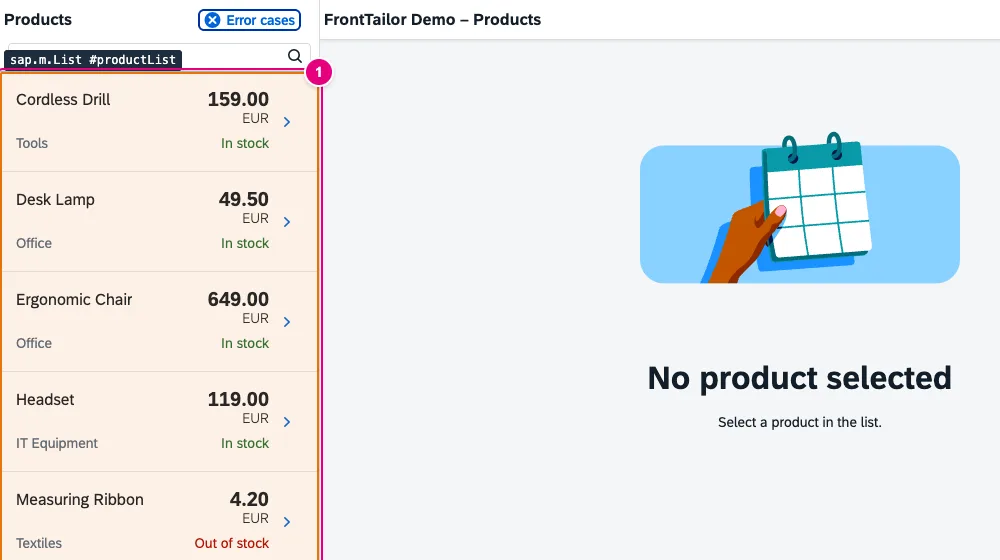
- Frame and label with control type and ID.
Filter and share findings
Identical findings – cloned list items or repeated texts, for example – are grouped and counted. Both sections have the same filters and exports; the export takes the findings currently filtered.
| Element | Effect |
|---|---|
| All · Error · Warning · Hint | severity filter, each with its count |
| All rules | filter by one rule |
| Filter by control, key or text | free text; below it “x of y” |
| Show in Inspector | switches to the Inspector tab and selects the control; if it is no longer in the page, a message says so |
| Highlight in the page | frame around the control, four seconds |
| Copy as Markdown | one finding to the clipboard |
| Export CSV | UTF-8 with BOM and CRLF; cells starting with =, +, - or @ get a ' in front |
| Export Markdown · Copy all as Markdown | report with page, time and the filtered findings |
With the AI bar and your own key there are two entry points: Translate missing texts in the Texts section turns missing keys and translations into .properties snippets per language, Fix with AI in the Accessibility section proposes a fix per finding with the WCAG criterion. Nothing is sent before preview and click.
What the check does not see
- Unused keys are only a hint: the check does not see controllers, formatters and views that are not loaded.
- Missing keys and hard-coded texts are found only in rendered views. Open dialogs and further pages and check again.
- The accessible name approximates what a screen reader announces.
- No contrast for non-text elements (WCAG 1.4.11), no check of keyboard and focus order.
Typical problems
| Problem | Cause and fix |
|---|---|
| Many hints Key not used | The keys are probably used in a controller with getText(). Search the code before deleting them. |
| No findings in a Fiori elements app | Texts from annotations and templates are exempt from the hard-coded text rule. The meta line says how many controls that affects. |
| A dialog is missing from the report | Only what is rendered is checked. Open the dialog, Check again. |
| other origin – not loaded | The bundle lives on another host. Translations are loaded from the app’s origin only. |
| The control is no longer in the page. | The app re-rendered or navigated. Check again. |
See also
- Features at a glance Features · Quality
- Further reading SAPUI5 – The Comprehensive Guide (SAP PRESS)
- Help from people Custom Fiori, UI5 and CAP apps
- Docs Inspector
- Docs Tools
- Docs Fiori Guidelines
- Docs AI assistant
- Sources ADR-0331