Release check
The transport is imported, but users still see the old version? After one click, the release check queries all your systems and shows a traffic light per system and check – with the next step, such as /UI5/APP_INDEX_CALCULATE. It works for SAP Fiori® and UI5 apps and is part of the Enterprise edition.
- Edition
- from Enterprise
- Tab
- “Release”
- Systems
- from the host profiles, no second list
- History
- the last 10 runs per app, in the browser
- On PROD
- allowed – the check only reads
Check a release
The systems come from your host profiles (name, colour, PROD in the popup, see Host profiles and PROD): this system first, then the others, PROD last. Without further profiles the tab checks only the current system.
- Open the app (in the launchpad: start the tile) and the Release tab in the FrontTailor panel.
- Leave Expected version empty to use the version of the deployed
manifest.jsonof the Source system – or type in the transport’s version. - Tick the Systems to check. The systems of the last run are preselected.
- Click Check release. In the same click FrontTailor asks for access, checks the source system first and then each other system in turn.
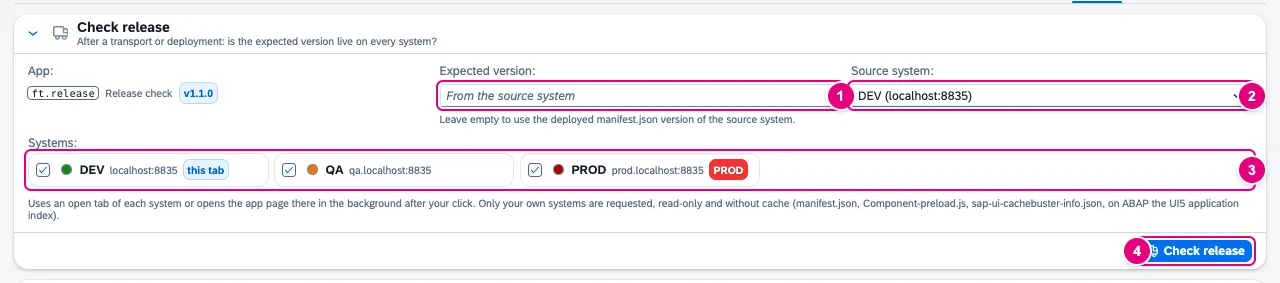
- Expected version – leave empty to take the source system’s version.
- Source system, preselected is the current one.
- Systems; the current tab is marked this tab, PROD with the PROD tag.
- Check release starts the run.
For each other system, FrontTailor uses an open tab with the same host and path or opens the app page there in the background; the check runs in that tab with your session. Only your own systems are requested, read-only and without cache: manifest.json, Component-preload.js, sap-ui-cachebuster-info.json and, on ABAP, the UI5 app index.
Result and traffic lights
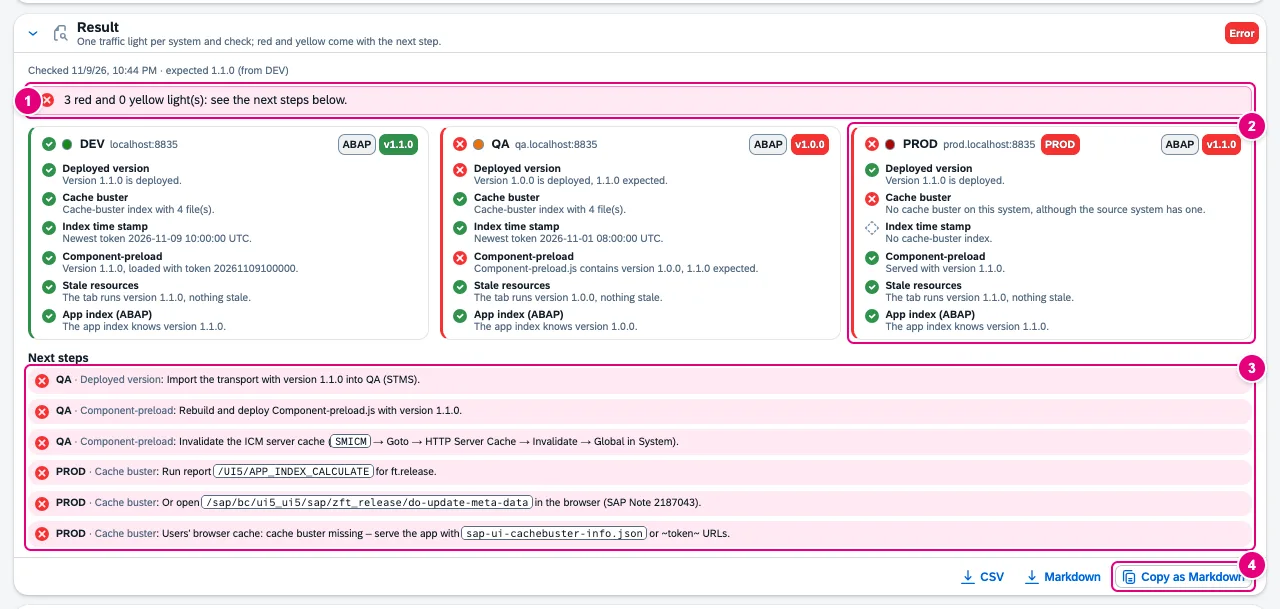
- The summary: red and yellow lights, or “All systems serve version ….”
- A system card with platform, served version and a light per check. The system’s light is the worst of its checks.
- Next steps per system and check, identical steps only once.
- Copy as Markdown for the change ticket; next to it Markdown and CSV as files.
| Check | Green | Red (examples) |
|---|---|---|
| Deployed version | equal to the expected one | older; manifest missing |
| Cache buster | index present and used | missing although the source system has one |
| Index time stamp | token not older than the files | token older than manifest.json or preload (60 s tolerance) |
| Component-preload | version in the preload matches | older; the browser loads a stale copy |
| Stale resources | running app = served version | running app older than served |
| App index (ABAP) | app found, version matches | app unknown; index differs from the served manifest |
Yellow means: newer or different than expected, no version in the manifest, index incomplete or not reachable. Grey (n/a) means not checked, for example the app index outside ABAP. The next steps depend on the platform (ABAP, HTML5 repository, web server), for example:
- run report
/UI5/APP_INDEX_CALCULATEfor the app or call…/do-update-meta-data, - run
/UI2/INVALIDATE_GLOBAL_CACHESor invalidate the ICM server cache (SMICM), - import the transport (STMS) or deploy again,
- set up a cache buster for the users.
The steps are text: FrontTailor starts no reports. The checks use the same logic as the deployment check of the current system, see Enterprise deployment.
History

The History keeps the last 10 runs per app, in this browser only: time, expected version, systems and lights. Show run brings an earlier run back into the result, Delete run and Delete all clean up. No response texts, cookies or tokens are stored. Exports mask personal data such as e-mail addresses; hosts stay visible, because they are the content of the report.
Typical problems
| What you see | Cause and fix |
|---|---|
| “No app is shown” | Open the app (in the launchpad: start the tile) and check again. |
| Only “this tab” in the system list | There are no further host profiles. Create DEV, QA and PROD in the popup. |
| Access not granted or FrontTailor is not activated on this system | Grant access, or activate FrontTailor in the popup of a tab of that system. |
| The system’s tab does not answer in time | Often an expired login. Sign in in that tab and check again. |
| A 404 line in the network console | A system has, for example, no cache-buster index. It only appears after your click and is itself the finding. |
See also
- Features at a glance Features · betrieb
- Further reading Configuring SAP Business Technology Platform – The Practical Guide for Administrators (SAP PRESS)
- Help from people Release and transport quality
- Docs System compare
- Docs Enterprise deployment
- Docs Health and morning check
- Sources ADR-0421 · ADR-0242